 Photo
PhotoExport step by step
- Save your editable master with File → Save. This downloads a PSD.
- Choose File → Export image… or the Export button at the top right.
- Choose the output format. For an ordinary photograph use JPEG; for transparency use PNG. Wait for the preview to finish.
- Review dimensions and any format-specific options. Use smaller pixel dimensions when you need a smaller web image; keep the proportions linked.
- Inspect the preview. Check the edges, text, background and any compression artifacts. Download the file using the dialog’s download control.
- Open the downloaded file in your image viewer. Confirm it is the version you intended to send.
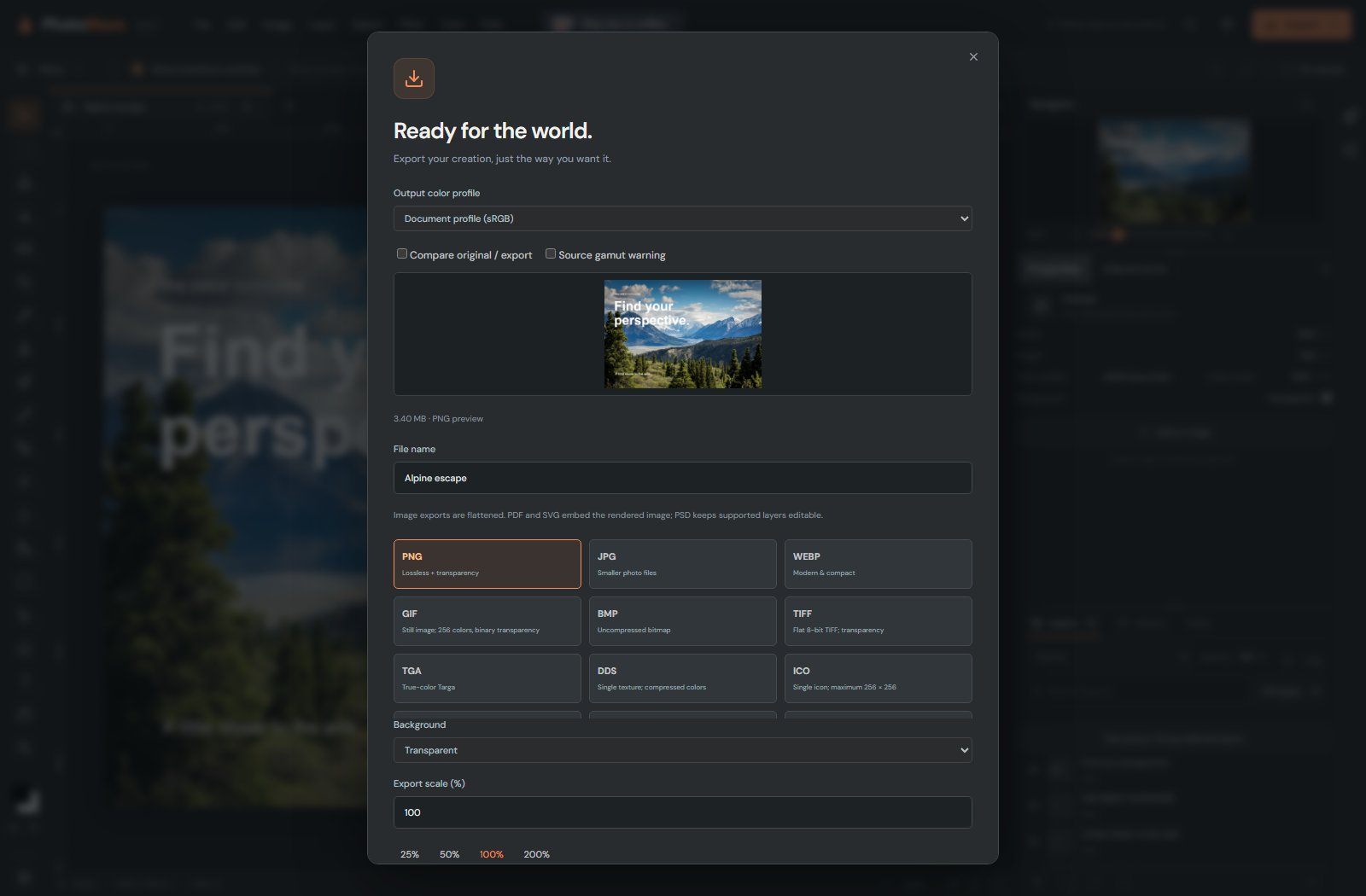
If no file appears, check your browser’s downloads list and any download-blocked notification. Wait for encoding on large images; opening the export dialog is not itself a download.
JPEG, PNG or something else?
| Format | Good use | Remember |
|---|---|---|
| PSD | Your editable master | Keeps supported layers and editing data; save and reopen important work. |
| JPEG | Sharing a normal photo | No transparency; compression can introduce artifacts. |
| PNG | Cutouts, graphics and transparent images | Often larger than JPEG for a photograph. |
| WebP | Web images when the receiving service accepts it | Check compatibility with the recipient. |
| TIFF | High-quality or high-depth image exchange | Check depth and color-mode requirements. |
| PDF / print output | A requested delivery workflow | Confirm size, color profile and flattening requirements with the recipient. |
See the format reference for the complete supported list. A format appearing in Open does not mean PhotoBlaze can export that same format.
Get a smaller file without making it look terrible
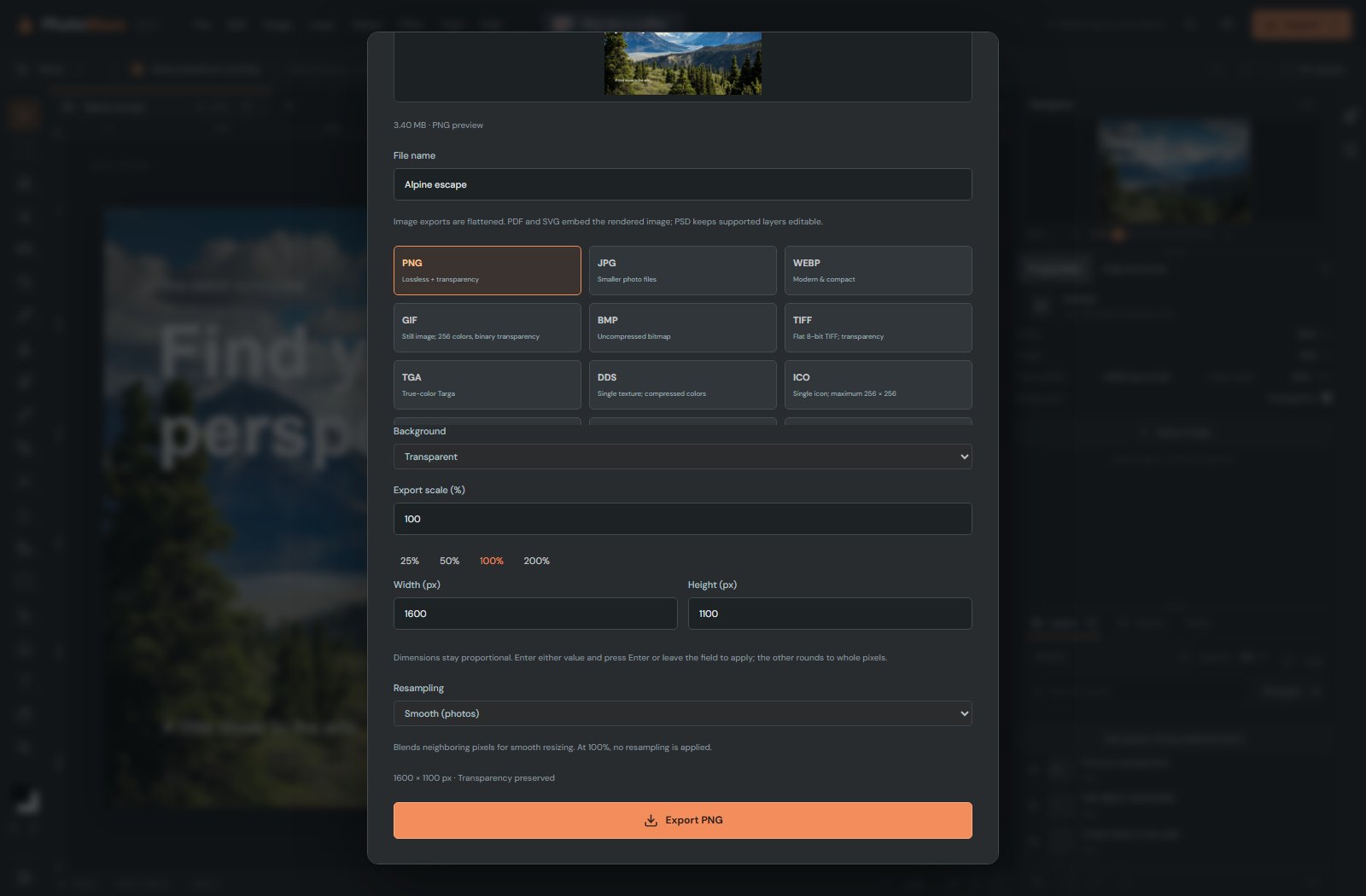
Pixel dimensions and compression both affect file size. First choose dimensions appropriate to the destination. Then, for formats with a quality control, reduce quality gradually while watching the preview. Look especially at lettering, smooth skies and sharp edges.
Do not repeatedly open and resave a JPEG while making edits. Work from the PSD or original and export a fresh final JPEG. If a website specifies a maximum width or file size, use that requirement rather than an arbitrary setting.
For printing, ask for required physical dimensions, pixel dimensions or resolution, profile and format. A screen preview alone cannot prove that a file is suitable for a particular press.
The final check before sending
- Correct document and filename?
- All intended layers visible, with no leftover test marks?
- Text proofread and fully inside the canvas?
- Correct dimensions and orientation?
- Transparency preserved when required?
- Downloaded file opens correctly outside PhotoBlaze?
- Editable PSD saved somewhere you can find later?