 Photo
PhotoMake a correction only where it is needed
A mask controls where an edit appears. A range limit narrows that mask to matching colors or brightness levels. For example, lift dark foreground trees while keeping bright clouds unchanged.
- Open a photograph and select its image layer.
- Choose Filter → Camera Raw Filter. For a 16-bit photo, you can also use Properties → Develop photo.
- Find Masks and Color Mixer. Choose Add range mask to begin with the whole photo. Choose brush, linear or radial instead if you want to draw a smaller area first.
- Give the mask a useful name, such as “Lift dark foreground”.
- Set a small local correction, such as Exposure +0.5, then narrow its range using the controls below.
Brighten shadows while protecting highlights
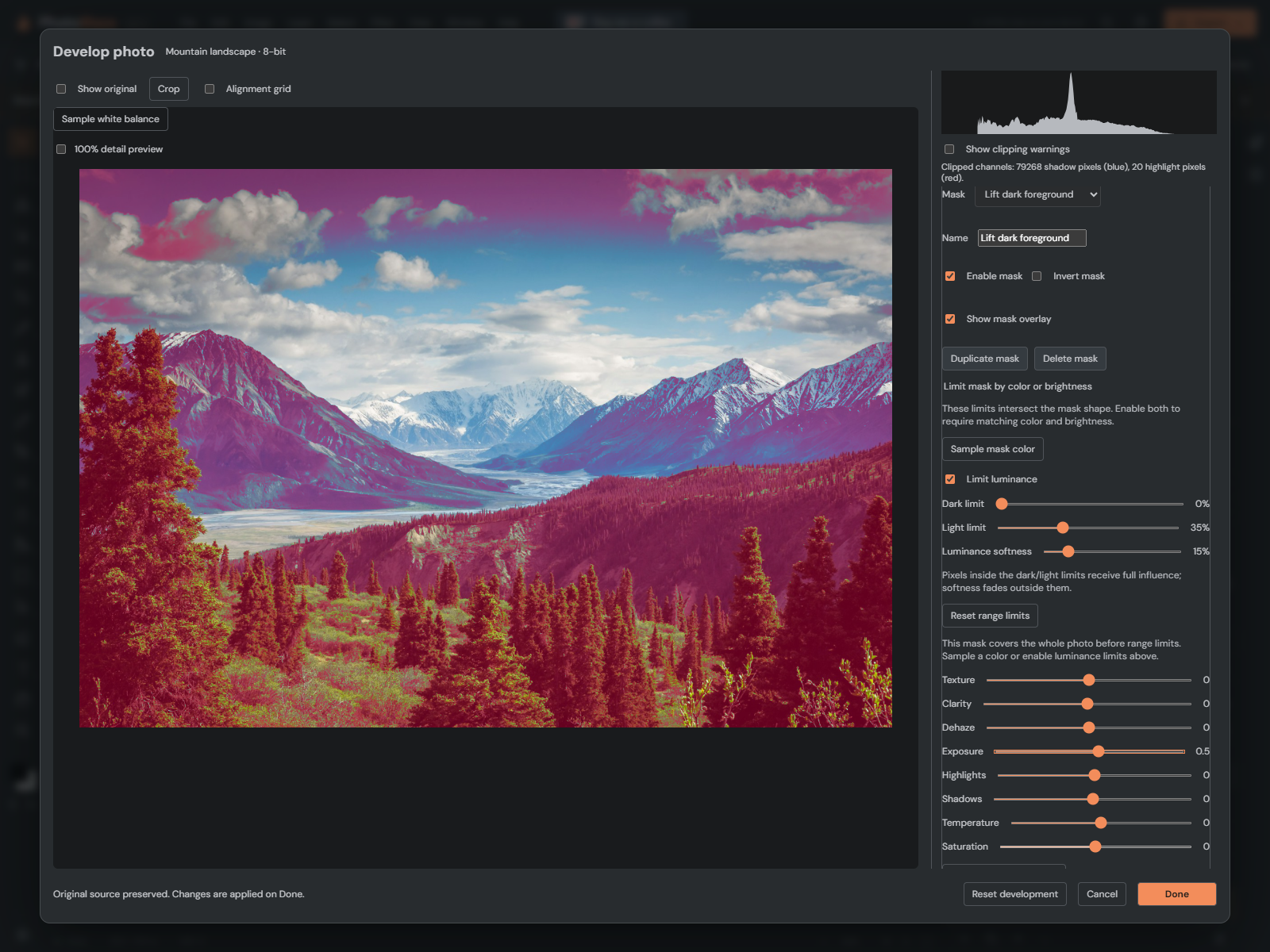
- Check Limit luminance.
- Leave Dark limit at 0% and move Light limit to about 35% to target darker areas.
- Set Luminance softness to about 15% for a gradual transition.
- Turn off Show mask overlay to judge the photograph normally.
- Adjust Local exposure or Shadows until the result looks natural.
For bright areas instead, try Dark limit 65%, Light limit 100%. For midtones, try 30% to 70%. These are starting points, not universal settings. Brightness here is a weighted RGB value, not a camera exposure measurement.
Pixels between the limits receive full influence. Softness adds fading transitions outside those limits. At 0% softness, the boundary is abrupt and may reveal unwanted edges.
Target a color from the photograph
- Select the mask you want to refine.
- Choose Sample mask color. Wait for the sample preview to be ready, then click a visible color in the photograph.
- Adjust Color tolerance. Lower values target closer matches; higher values include more neighboring shades.
- Use Add range color sample to include another shade. You can use up to eight samples.
- Select a sample’s × button to remove it, or choose Remove color limit to keep the shape without its color restriction.
Escape cancels sampling. Sampling reads the image before the selected local correction, so increasing that mask’s exposure does not change the color it targets. Global corrections and earlier masks can still change the input.
Combine shape, color and brightness
A range mask starts across the whole photo. A brush or gradient begins with its painted or geometric shape. Color and luminance limits then restrict that area: a pixel must match all enabled limits. Multiple color samples are alternatives: matching any one is enough.
For example, use a radial mask around a face, then limit it to midtones. Or paint across foliage and sample green to avoid affecting nearby rocks. Colors alone cannot identify objects: another object with a similar color may also match.
Show mask overlay displays the combined coverage in pink. Fainter overlay means weaker influence. Invert mask reverses the shape before range limits; it does not reverse the color or luminance criteria. Inverting a whole-photo shape makes it empty.
Reset, save and return later
Reset range limits removes color and brightness restrictions while retaining the shape and correction. Reset local adjustments clears the correction but keeps its mask and range. Disable a mask to compare without deleting it.
Choose Done or Apply filter to keep the session as one undoable change. Cancel discards the session. Save an editable PSD to return to these settings in PhotoBlaze; browser recovery also retains them. Original source pixels remain available, and 16-bit processing retains high precision.
These masks are PhotoBlaze settings saved with the PSD. Photoshop displays the developed image but cannot edit them as native Adobe Camera Raw masks. Finished image exports include the correction, never the overlay or handles.
If the result is missing or too broad
- No visible change: check Enable mask, set a nonzero local correction, and check that the shape covers the area. A new brush mask is empty until you paint.
- Overlay disappears: the color and luminance conditions may not overlap. Remove one limit or widen it.
- Too much is affected: lower color tolerance, narrow the brightness interval, or use a brush/radial mask instead of a whole-photo mask.
- Harsh edges: increase luminance softness or spatial feathering and reduce correction strength.
- Wrong sample: remove its swatch and sample again. Transparent areas cannot supply a color.