 Photo
PhotoBring a dark subject into balance
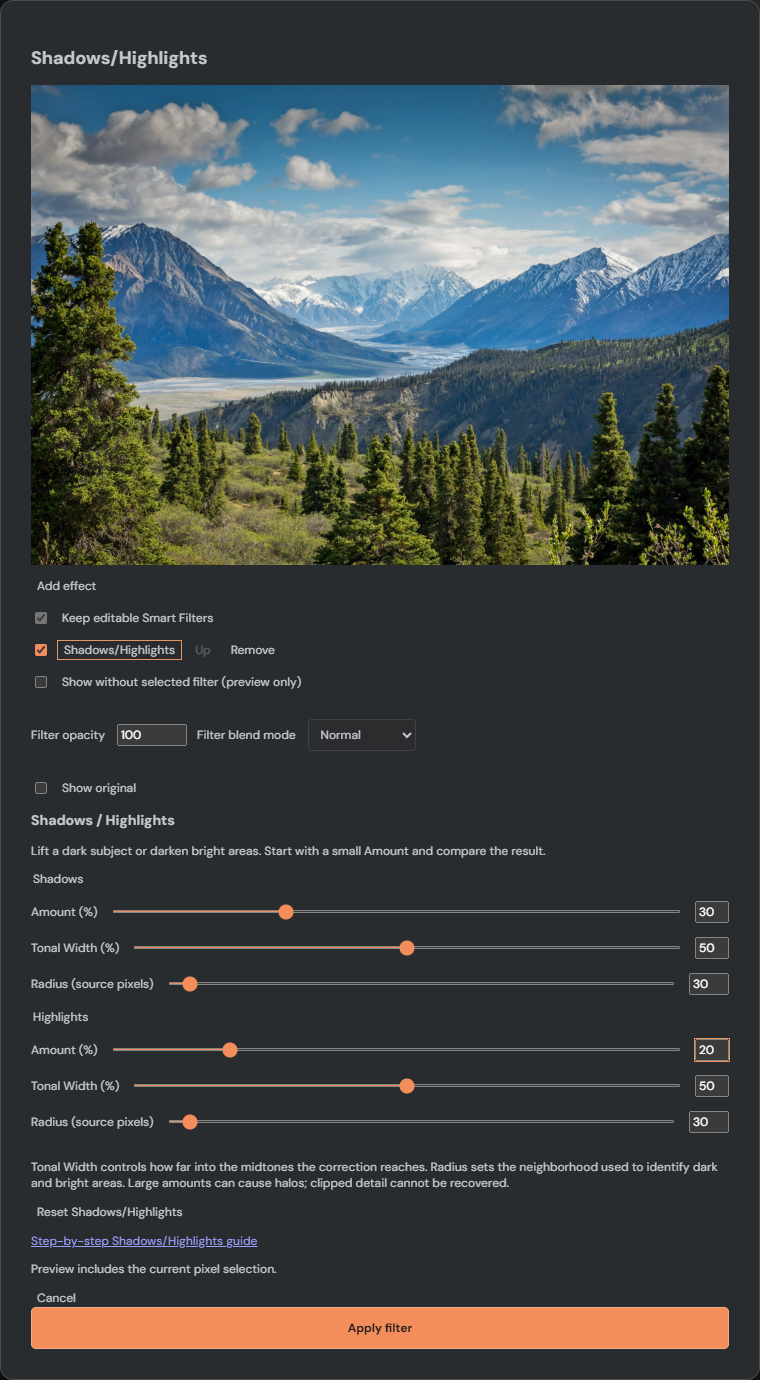
If a face is too dark against a bright sky, increasing overall brightness also brightens the sky. Shadows/Highlights lets you work on dark and bright areas separately. It analyzes nearby pixels to decide which areas to change.
- Open a photo and select its image layer in Layers.
- Choose Image, then Adjustments, then Shadows/Highlights.
- Under Shadows, start with Amount around 20 to 30. Increase slowly while watching the subject.
- Under Highlights, try Amount around 10 to 20 if the bright areas need darkening.
- Use Show without selected filter to compare. Turn it off to see the correction again.
- Choose Apply filter when satisfied, or Cancel to leave the photo unchanged.
The command works on unlocked image and paint layers in RGB 8-bit and 16-bit documents. It stays editable as a Smart Filter attached to that layer, preserving the unfiltered source. If the command is unavailable, select an image layer; after reopening a PSD, you may need to select the layer again.
Understand the three controls
- Amount
- How strongly the correction is applied. Shadows Amount brightens dark areas; Highlights Amount darkens bright areas. Zero means no change for that section.
- Tonal Width
- How far the effect extends toward the midtones. A small Shadows width targets only very dark areas. A larger width also affects moderately dark areas. Highlights works from the bright end in the same way. A width of zero disables that section.
- Radius
- The size of the surrounding area used to judge whether a pixel belongs to a dark or bright region, measured in source-image pixels. Small radii follow small details; larger radii respond to broader regions. The two radii are independent. Zero uses each pixel on its own.
Try Radius near the size of a feature you want to correct, then compare smaller and larger values. There is no universal best setting. A halo is a light or dark rim around an edge; reduce Amount, narrow Tonal Width, or adjust Radius if one appears. The preview may be reduced on large 8-bit photos, so inspect the applied result at 100% zoom.
This tool cannot reconstruct detail that was already clipped to pure white or black. Strong shadow brightening can also reveal noise. Start gently and keep a natural contrast between light and shade.
Limit the correction and revise it later
- Reduce Filter opacity in the dialog to make the selected effect gentler without changing other filters.
- For a selection-only correction, make the selection before opening the command.
- After applying, expand Smart Filters beneath the layer. Use Paint filter mask to hide effects with black or restore them with white.
- To revise this correction, select the layer and open Image > Adjustments > Shadows/Highlights again. The existing entry is edited instead of adding another.
- Use Reset Shadows/Highlights to return both Amounts to zero. Apply the reset to commit it; Undo restores the previous edit.
The Smart Filter mask affects the whole filter stack. A selection captured for this filter affects only this entry. Show without selected filter is a temporary comparison; Show original compares against the unfiltered source, including any other filters in the stack.
Save an editable copy
Choose File > Save to download a PSD. PhotoBlaze preserves the original photo and the correction settings in supplemental PSD data, and reopening an unchanged PhotoBlaze PSD restores them. Other editors receive rendered pixels; this does not create Adobe's native Shadow/Highlight filter. Resaving in another editor can remove PhotoBlaze settings.
Keep the original PhotoBlaze PSD for future editing. The existing PSD workflow can bake transformed ordinary layers; use an embedded Smart Object when you need transformed filter stacks to remain editable across saves. PNG, JPEG and other flat exports contain the finished appearance rather than the controls. Browser recovery is convenient but is not a substitute for a downloaded copy.