 Photo
PhotoCorrect a color cast without repainting your photo
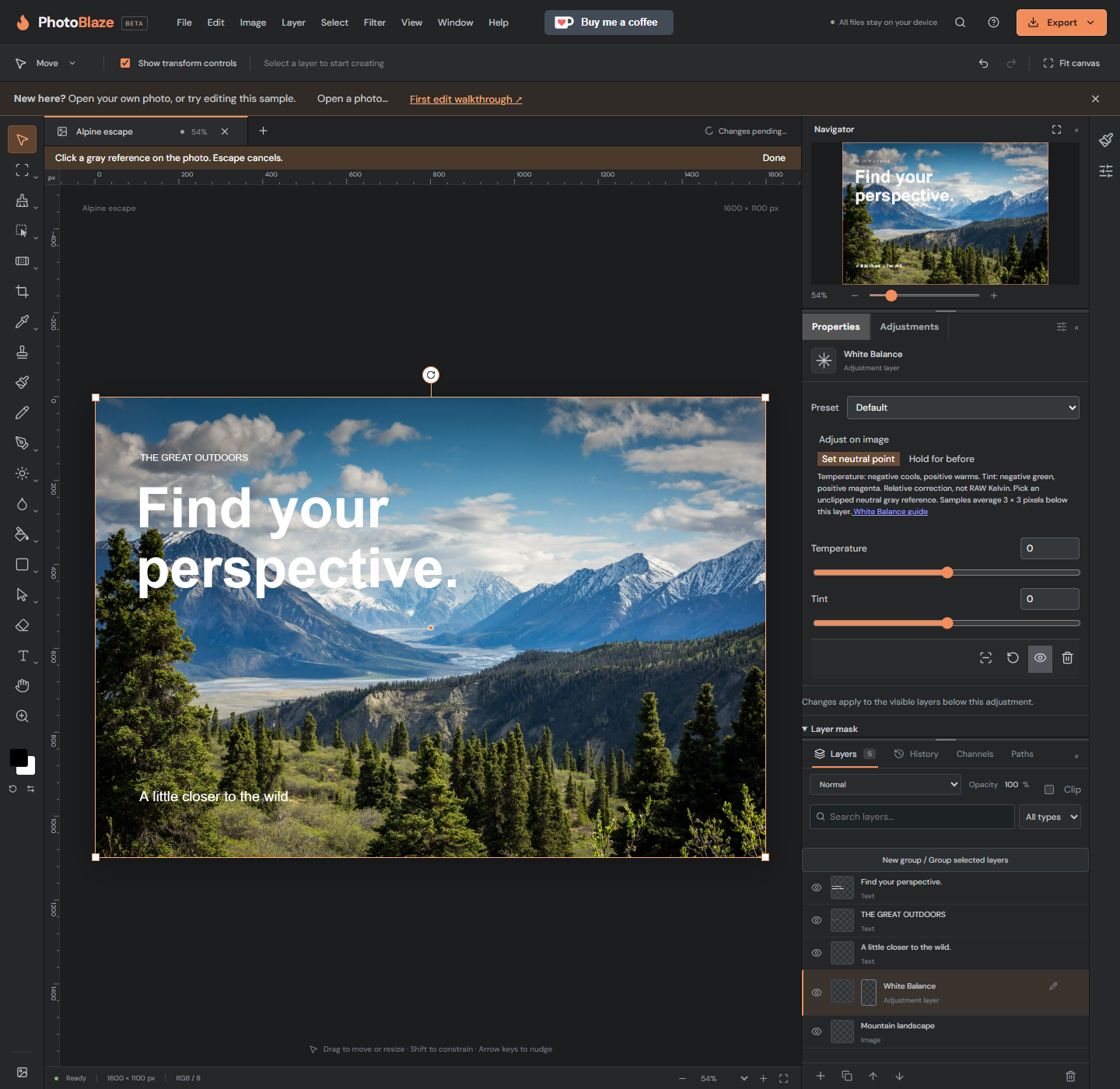
A white object can look yellow under indoor lighting or blue in shade. White Balance changes the relative red, green and blue components in an editable adjustment layer. It works in RGB 8-bit and 16-bit documents.
- Open your photo and select its layer.
- Choose Adjustments, then White Balance.
- In Properties, increase Temperature to warm the photo or decrease it to cool the photo.
- Increase Tint to add magenta or decrease it to add green. Make small changes while watching skin and neutral objects.
Both sliders start at zero. These are relative -100 to 100 corrections to an already rendered photo, not camera Kelvin values or RAW sensor processing. Strong settings can clip highlights.
Use an object that should be neutral
- Choose Set neutral point.
- Click a gray object that should have no color cast, such as a gray card photographed under the same light.
- Avoid colored objects, deep black shadows and blown-out white reflections.
- The picker averages a 3 by 3 pixel area below this adjustment. It replaces Temperature and Tint; it does not force the sample to middle gray.
- If the result looks wrong, undo and try another reference. Press Escape to cancel sampling.
A warning means the sample is clipped, too dark, transparent or outside the correction range. Mixed lighting may require separate masked adjustments.
Compare, limit and save
Hold for before temporarily hides this adjustment; release to restore it. Reset adjustment returns both values to zero. Reduce layer opacity for a gentler result. Paint black on the adjustment mask to hide the correction in selected areas, or use clipping to affect only the layer below.
Save preserves the adjustment and mask in a PSD. Other PSD readers receive a Color Lookup adjustment. PhotoBlaze restores Temperature and Tint when reopening its unchanged lookup. PNG and JPEG exports contain the visible result, not editable controls. Keep your PSD for later changes.