 Photo
PhotoEdit one color channel without changing the others
A color photo has Red, Green and Blue components. Editing Red changes how much red light a pixel contributes. It does not mean painting a red object. Start on a duplicate layer if you want to compare the result with your original.
- In Layers, select the photo you want to change. The layer must be visible and unlocked. Open Channels beside Layers.
- Click Edit on the Red row. The banner above the canvas now says Editing: Red — transparency protected, and the Red Edit button is highlighted. Shift-click another Edit button to add or remove a target. If no channels are targeted, painting is blocked.
- Leave the RGB thumbnail selected to judge the photograph in color. Click the Red thumbnail to inspect red intensity in grayscale. Eye buttons and thumbnails control what you see; they do not change which Edit buttons are targeted.
- Choose Brush or Pencil. Black reduces the targeted component; white increases it. A colored foreground supplies that color's corresponding component. Use Size, Hardness, Opacity and Flow as usual. Drag to paint and release to commit one undoable stroke. Wait for processing to finish before starting the next stroke; Escape cancels an unfinished stroke or pending edit.
- Eraser paints the background color into the targeted components. It does not make the image transparent in channel mode. Untargeted components and the source alpha values stay unchanged.
- For a whole-layer change, scroll down inside Channels to Adjust targeted channels. Brightness adds or subtracts component intensity; Contrast expands or compresses values around the midpoint. Invert reverses them. Choose Apply channel adjustment. A selection limits both these adjustments and painting; soft selection edges blend the effect.
- Use Undo and Redo to compare changes. Choose Edit RGB above the canvas, the RGB row's Edit button, or return to Layers to resume normal editing. Opening or switching documents resets targets to RGB.
- Use File → Save for PSD, or Save PhotoBlaze project in Channels. Reopen the file and inspect the layer. Actual pixel edits are saved; the viewing filter and editing targets are not baked into the export.
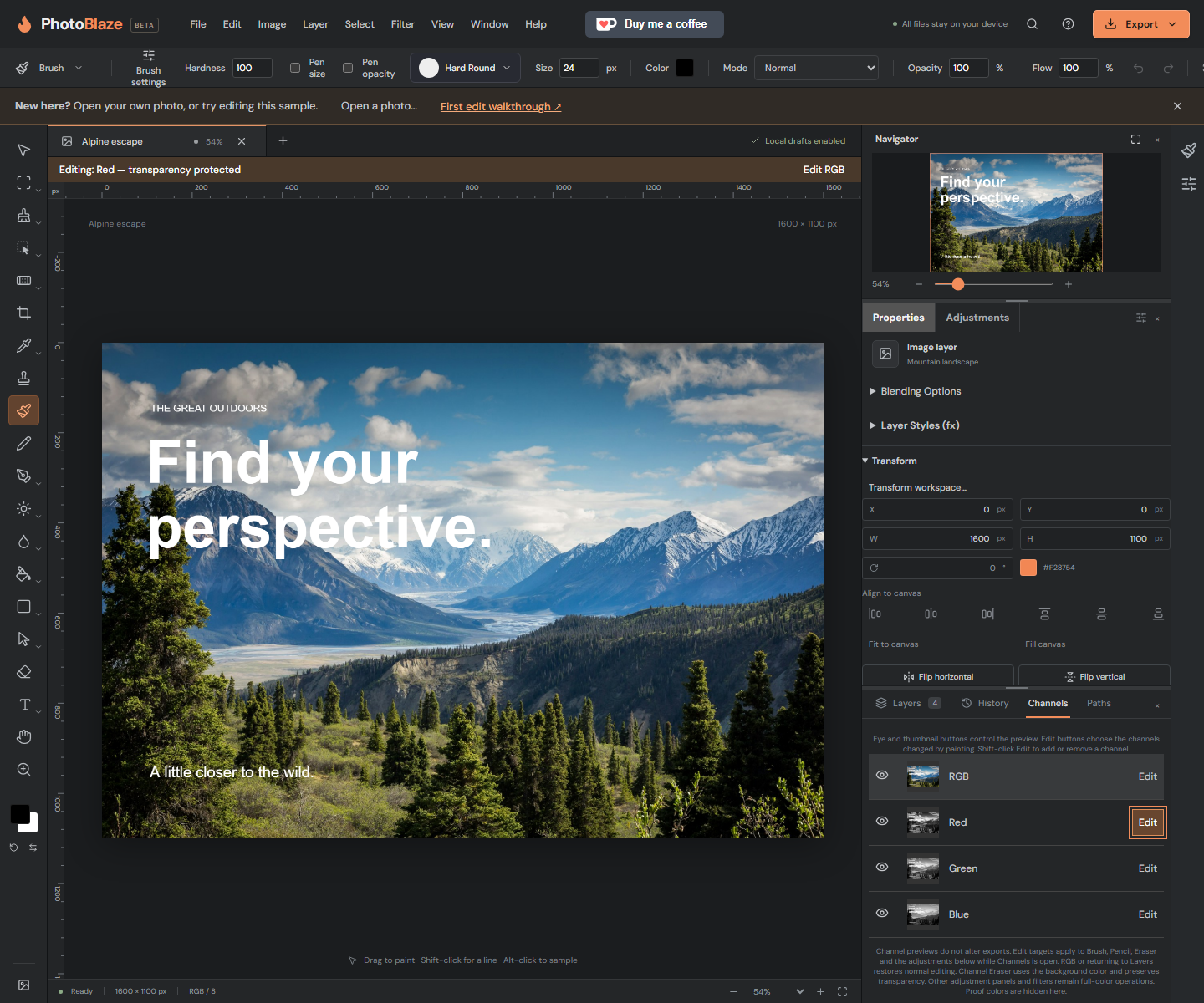
Example: reduce a red cast in one area
Select the affected area with a marquee or lasso. Choose Edit on Red, keep RGB visible, and start with Brightness −5 in the channel adjustment controls. Apply once and compare with Undo/Redo. If skin or neutral objects look too cyan, undo and use a smaller change. Deselect when finished. For a deliberate color effect, duplicate your layer, target Blue and try Invert.
Scope and precision
This workflow edits source pixels on one selected RGB photo/raster layer. It preserves source transparency and separate masks. 16-bit documents retain 16-bit component values; 8-bit documents retain 8-bit values. Layer effects, blending or other color adjustments can influence the final appearance. Brush, Pencil, Eraser and this panel's Brightness, Contrast and Invert controls support channel targets. Other adjustment panels and filters remain full-color operations; other painting tools are blocked in channel mode. Choose Edit RGB before using them.
Smart Objects, Smart Filters, warped layers and layers with unbaked brush strokes need rasterizing or baking first. Painting a non-uniformly scaled layer also requires rasterizing; channel adjustments still work on it. Native CMYK and spot channels are not supported. This edits color components, not the reusable alpha selections used as masks.