 Photo
PhotoChange a color without repainting the photograph
Hue changes the color family, Saturation changes color intensity, and Lightness makes it lighter or darker. A Hue/Saturation adjustment layer keeps the original photograph intact. For example, you can make green foliage richer while leaving blue sky alone.
- Open your photograph with File → Open.
- Select its image layer in Layers.
- Open the Adjustments tab and choose Hue / Saturation.
- In Properties, choose a colored swatch. Master affects all colors.
- Start with a small Saturation change, such as +15. Use Hue to change the color itself. Avoid large Lightness changes unless you want a stylized result.
Pick the color from your image
Select Sample color range, then click a colored area of the photograph. The sampler reads a small area of the original image below the adjustment, including in 16-bit documents. It does not sample text or other layers above the adjustment. Escape cancels sampling.
From Master, sampling chooses the nearest color family. When a family is already selected, sampling redefines that family’s boundaries without changing its Hue, Saturation or Lightness values. The new range has full influence within 15° of the sampled hue and fades out by 30°.
Choose Add sampled color and click a nearby shade to expand the current range. This helps when a subject contains several related shades. Gray, black, white and transparent areas are not useful color samples. On-image sampling currently supports documents up to 32 megapixels.
Refine the four range handles
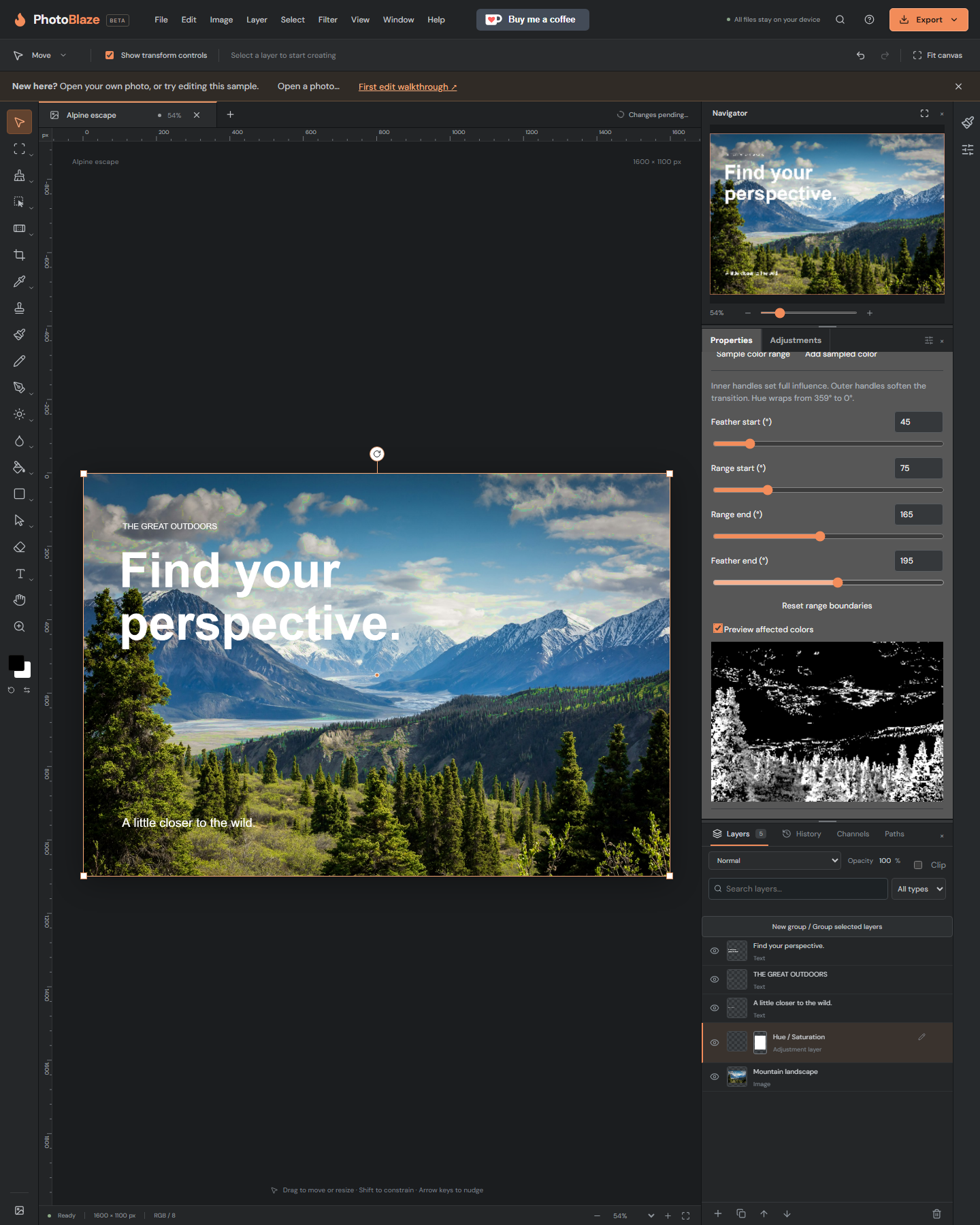
Each slider has a draggable handle and a numeric degree field. Hue runs around a circle: red is near 0°, yellow 60°, green 120°, cyan 180°, blue 240° and magenta 300°.
- Feather start: where the adjustment begins to fade in.
- Range start: where full influence begins.
- Range end: where full influence ends.
- Feather end: where influence fades back to zero.
Wider feather intervals make softer transitions. Narrower intervals isolate colors more tightly but may leave harsh edges. Handles stop at their neighbors. Red can cross the end of the scale: a range from 345° to 15° includes red at 0°. This is expected.
Check which colors are included
Enable Preview affected colors. White means full influence from the selected range; gray means partial influence in its feathers; black means outside that range. The small preview is only a diagnostic and is not exported.
The preview shows color-range influence before layer masks and opacity. It does not include Master changes or changes to other color families. If two objects share the same hue, both can be affected. Select the adjustment’s mask and paint black over the object you want to protect; paint white to restore the correction. See Layers and masks.
Reset, undo and save your work
Reset range boundaries restores only the selected family’s default range; it keeps your Hue, Saturation and Lightness settings. The Properties reset arrow resets the whole Hue/Saturation adjustment. Use Undo to reverse an edit; dragging a handle is one undo step. Escape during a drag cancels it.
Use File → Save to download an editable PSD. The custom boundaries are preserved in PSD and browser recovery, including 16-bit photo documents. Export PNG or JPEG for a finished image. Colorize uses the whole image rather than separate color ranges, so range controls are hidden while it is enabled.