 Photo
PhotoFind your local masks
Open a photo, select its image layer and choose Filter → Camera Raw Filter... or Develop photo. Expand Masks and Color Mixer. Create a radial, linear, brush, range or automatic mask. A mask chooses where a correction applies; the local adjustment sliders choose what changes there.
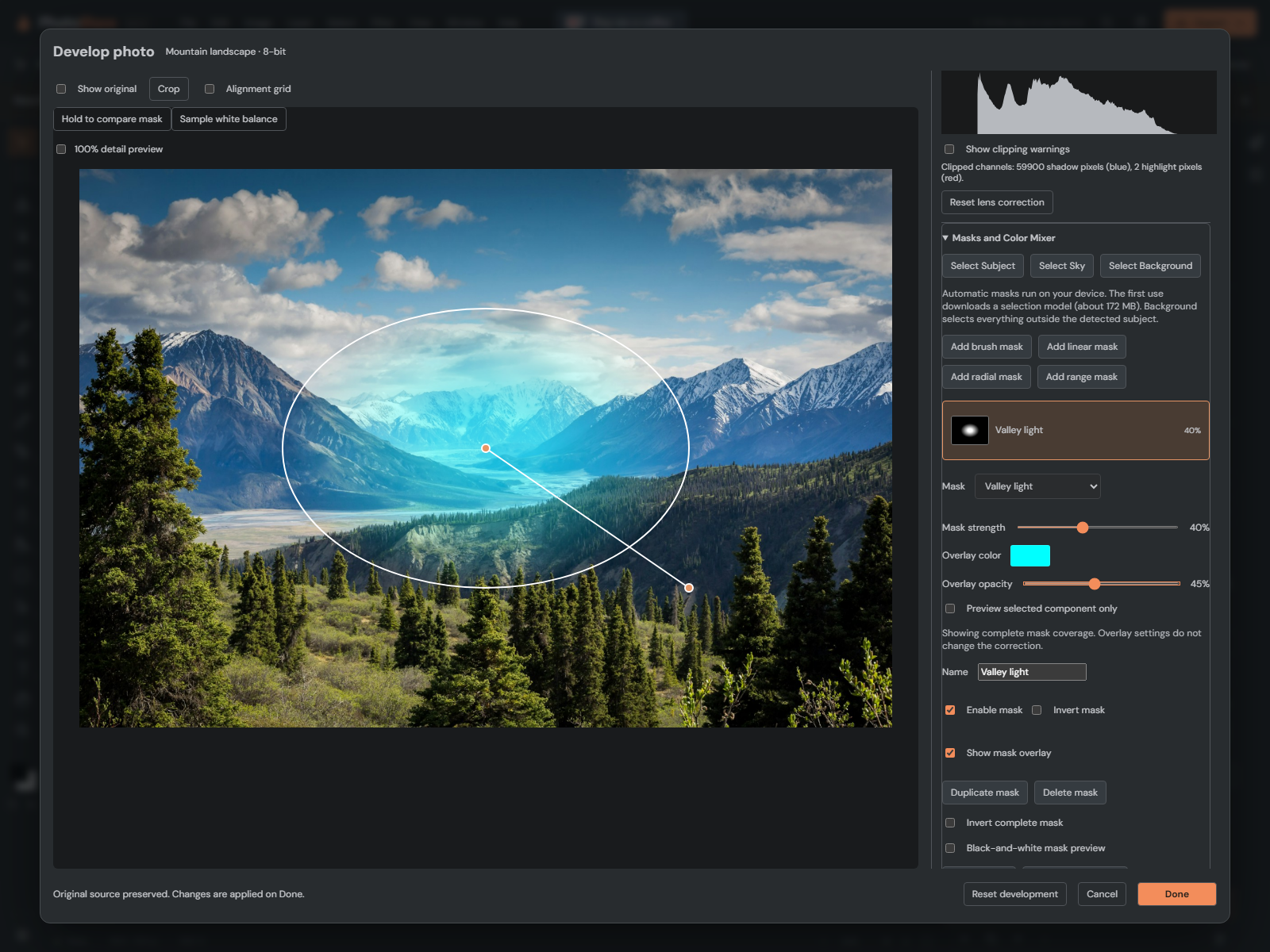
Click a mask row to select it. The highlighted row shows its name, coverage thumbnail and correction strength. Give masks descriptive names such as Valley light or Sky contrast. The Mask dropdown selects the same masks. Disabled masks remain listed so you can find and enable them again.
Make a correction more subtle
- Create a mask and adjust Local exposure or another local correction until you can see its effect.
- Turn off Show mask overlay to judge the actual photo.
- Lower Mask strength to soften the entire correction. At 100% it uses the full correction; at 0% it contributes no change.
- Try 40–60% for a gentler result. You can raise it again without recreating the mask or changing its sliders.
Strength blends the corrected pixels with the pixels entering this mask. It does not reduce every slider numerically: 50% strength is not necessarily the same as halving Exposure. Existing masks default to 100%. Coverage thumbnails and overlays stay the same when strength changes because the selected area has not changed.
Choose an overlay you can see clearly
Enable Show mask overlay and choose Overlay color. Cyan can be easier to see over warm scenery; a warm color can stand out against blue water. Adjust Overlay opacity to balance visibility of the mask and the photograph beneath it. These controls do not tint the exported photo.
For edge inspection, turn on Black-and-white mask preview: white means full coverage, black means no coverage, and gray means partial coverage. This view overrides the colored overlay and its opacity. Thumbnails are small approximations for navigation; inspect the larger preview for edges and range limits.
Inspect one component or the combined result
A mask can combine several components with Add, Subtract and Intersect. Select a component in Mask components, then enable Preview selected component only. This shows that part before it combines with the rest. Selecting Base mask shows the original base without the complete mask’s final brush refinements or inversion.
Turn component-only preview off to check the complete mask again. A component can cover a large area while the combined mask covers only a small intersection. Component-only preview does not change the correction, enable a disabled component, or save a different mask. Local correction sliders and Mask strength always affect the complete mask. Learn the operations in Combine masks with Add, Subtract and Intersect.
Compare before and after this mask
- Select the mask you want to evaluate and wait for the preview to finish.
- Press and hold Hold to compare mask above the photo. The selected mask’s correction is temporarily hidden, together with its overlay.
- Release to return to the corrected view. Repeat while watching the part of the photo you are adjusting.
With keyboard focus on the button, hold Space or Enter and release to return. Escape or moving focus away also ends comparison. Other masks and the global correction remain in the comparison; this is different from Show original, which compares against the source photo. No saved settings change while comparing.
Keep the edit and solve common surprises
Choose Done or Apply filter to commit the session, or Cancel to discard it. Strength is saved with the mask through Undo/Redo, browser recovery and PhotoBlaze PSD reopening. Both 8-bit and 16-bit correction paths are supported. Overlay appearance, component-only view and temporary comparison are viewing aids, not saved correction data. These local masks remain PhotoBlaze settings rather than native Adobe Camera Raw masks.
- The mask is visible but nothing changes: check Enable mask, Strength above 0%, and at least one non-neutral local adjustment.
- The photo looks tinted: turn off the colored overlay to judge the correction.
- The preview does not match the combined result: turn off Preview selected component only.
- Compare looks identical: the selected mask may be disabled, empty, neutral or set to 0% strength.