 Photo
PhotoOne correction, several ways to choose its area
A mask can contain a base and up to eight additional components. Each component describes an area. They all share the same local correction values; they do not create extra layers or separate exposures.
- Add: includes the new area as well as the area already covered.
- Subtract: removes the new area from the current coverage.
- Intersect: keeps only the area covered by both the current mask and the new component.
Soft edges retain partial coverage. For example, two half-strength areas intersect to give quarter-strength coverage. Components are applied in the order shown, so moving a component can change the result.
Example: darken only the upper sky
- Open your photo, select its image layer and choose Filter → Camera Raw Filter... or Develop photo.
- Under Masks and Color Mixer, choose Select Sky. Check that the pink overlay covers the sky.
- Find Mask components. Set New component operation to Intersect and Component tool to Linear gradient.
- Choose Create component. Give it a useful name such as Upper sky fade.
- With the component selected, move the two gradient endpoints in the preview. The first endpoint has no coverage; the second has full coverage. Place the first near the horizon and the second near the top of the photo. Turn off Black-and-white mask preview temporarily if you need to see the handles.
- Turn off Show mask overlay and try Local exposure around -0.5. The upper sky changes most, while the mountains remain outside the detected sky.
- Choose Done or Apply filter to keep the edit.
Automatic detection is a starting point. Fine edges can need brush refinement. See automatic masks for download and detection details.
Select the part you want to edit
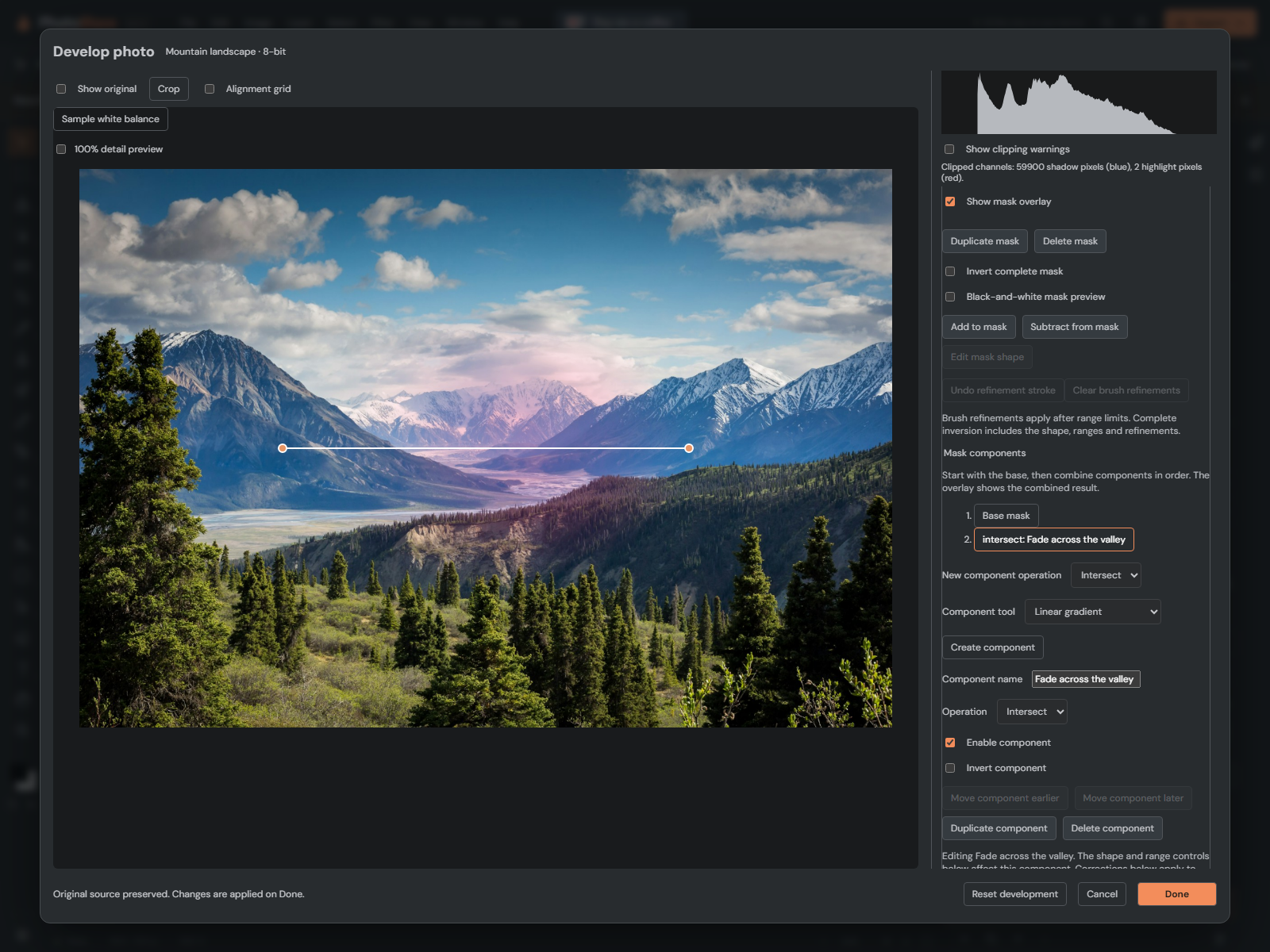
Select Base mask to edit the original shape and its ranges. Select a named component to edit its shape and ranges. The highlighted button identifies the part being edited. The overlay normally shows the complete combined mask. Use Preview selected component only to inspect an individual part. See the mask workspace guide for thumbnails, strength and comparison controls.
For a selected component, change its name or operation, enable or disable it, or invert its shape. Move component earlier/later changes processing order. Duplicate component copies its editable settings; Delete component removes only that component. The base remains. Selecting a component does not change the local correction sliders: those always belong to the complete mask.
Use brushes, ranges and automatic components
Choose Brush as the component tool to paint a separate editable area. For example, a Subtract brush component can exclude a foreground object. Adjust Brush size, feather and flow, then paint in the preview. Erase mask erases coverage from that brush component; a Subtract component with less coverage removes less from the complete mask.
Choose Color / luminance range to create a whole-photo component, then sample a color or enable luminance limits below. An Intersect range narrows the current mask. An Add range adds matching pixels. Until you set a range limit, this component covers the whole photo.
Subject, Sky and Background are also available as component tools. For example, Subtract Subject removes a detected person from another mask. Detection uses the existing local model and saves its result in the component. Cancel detection or a detection failure leaves existing components intact.
Refine, inspect and save
Add to mask and Subtract from mask switch back to final brush refinement of the complete mask. These strokes apply after all components and can include exceptions outside an intersection. Invert complete mask reverses the result after those refinements. Black-and-white mask preview shows white for full coverage, black for none, and gray for partial coverage.
Done or Apply filter commits the session as one document Undo step; Cancel discards it. Browser recovery and PhotoBlaze PSD reopening retain the component list, order, settings, detection results and source photo. Both 8-bit and 16-bit editing are supported. These remain PhotoBlaze settings rather than native Adobe Camera Raw masks.
If the correction disappears, check for an empty intersection, a disabled component, an unpainted brush component or an overly narrow range. If too much changes, check for an Add component with no range limit. Disable components one at a time to find the cause. See brush refinement and range masks for more detail.