 Photo
PhotoStart with a photo
A mask controls where a correction applies. You can darken a bright sky without darkening the landscape, brighten a person, or reduce saturation behind a subject.
- Open your photo and select its image layer.
- Choose Filter → Camera Raw Filter..., or use Develop photo when available.
- Expand Masks and Color Mixer.
- Choose Select Subject, Select Sky or Select Background.
Subject prioritizes recognized people and animals; otherwise it chooses the largest recognized foreground object. Sky finds recognized sky regions. Background is the inverse of the detected subject; it is not a separate scene classifier.
Let detection finish
The first use downloads a selection model of about 172 MB. Your browser may cache it for subsequent uses. Download progress and analysis status appear beside the mask controls. Your photograph is processed on this device and is not uploaded to the model host.
Use Cancel detection to stop. Cancellation or failed detection leaves existing masks unchanged. If detection fails, check your connection and retry, or use Add brush mask or Add range mask. A photo without a recognizable subject or sky may not produce a mask.
Check the mask, then adjust the photo
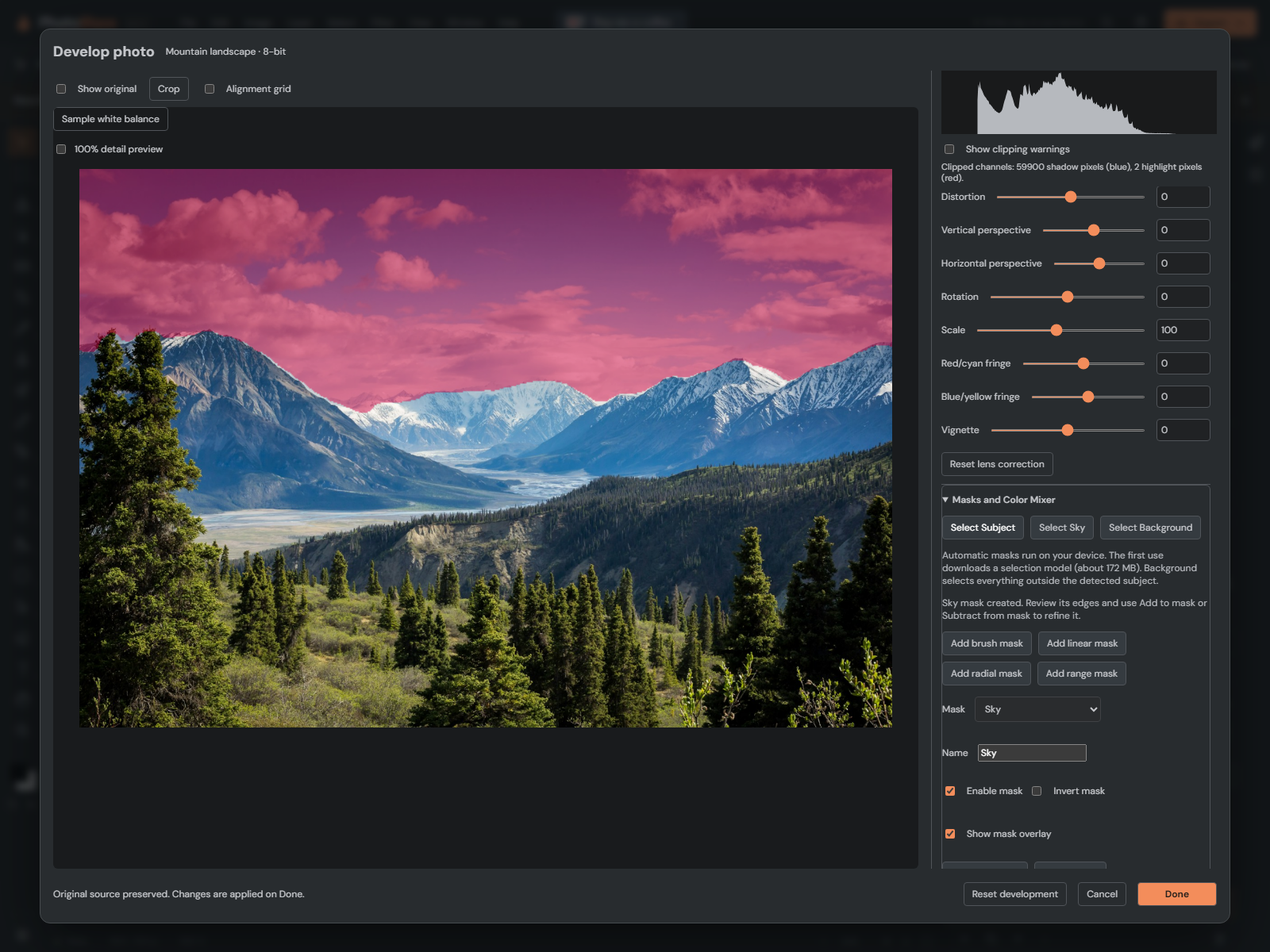
- Check the pink overlay: it should cover the area you want to change.
- Turn off Show mask overlay to judge the correction.
- Try Local exposure at -0.5 for a bright sky, or a small positive value for a dark subject.
- Adjust local Highlights, Shadows, Temperature or Saturation as needed.
- Choose Done or Apply filter to keep the edit. Cancel discards the editing session.
A newly created mask has neutral corrections, so it does not change the photo until you move an adjustment. Select Global photo settings in the Mask list to return to whole-photo corrections. You can keep up to 16 local masks.
Refine imperfect edges
Automatic detection is a starting point. Analysis uses a reduced-resolution image, with a maximum edge of 640 pixels. Hair, foliage, fine wires and small objects may need manual refinement; the original photo retains its full resolution.
Choose Add to mask to include missed areas or Subtract from mask to remove unwanted areas. Adjust Brush size, feather and flow, then paint in the preview. Black-and-white mask preview shows white where the correction applies, black where it does not, and gray for partial coverage.
Color and luminance limits narrow the detection. Brush refinements happen after those limits, so Add can include exceptions. Invert complete mask reverses the final result. See brush refinement and range masks for detailed steps.
Save and reopen
The detected coverage, corrections and refinements are saved together. Browser recovery and editable PSD files retain them for PhotoBlaze editing; reopening does not require detection again. Both 8-bit and 16-bit editing keep the original source. Photoshop can display the developed result, but these are not native Adobe Camera Raw masks.
To combine detection with gradients or additional selections, see editable mask components. Detection is a saved snapshot, not a live selection that follows later subject changes. To detect again, create another automatic mask and delete the old one after comparing it. Applying the session supports document Undo and Redo.