 Photo
PhotoFix the exceptions without rebuilding your mask
A color or brightness range can select more than you intended. For example, a dark-tree correction may also affect a building. Brush refinements let you remove the building while retaining the original mask and correction.
- Select your photograph and open Filter → Camera Raw Filter, or Develop photo for a 16-bit photo.
- In Masks and Color Mixer, select an existing mask or create a brush, linear, radial or range mask.
- Choose Subtract from mask to protect an area, or Add to mask to include an area that was missed.
- Paint on the photograph preview. Release the pointer to update the correction.
Set the brush and paint
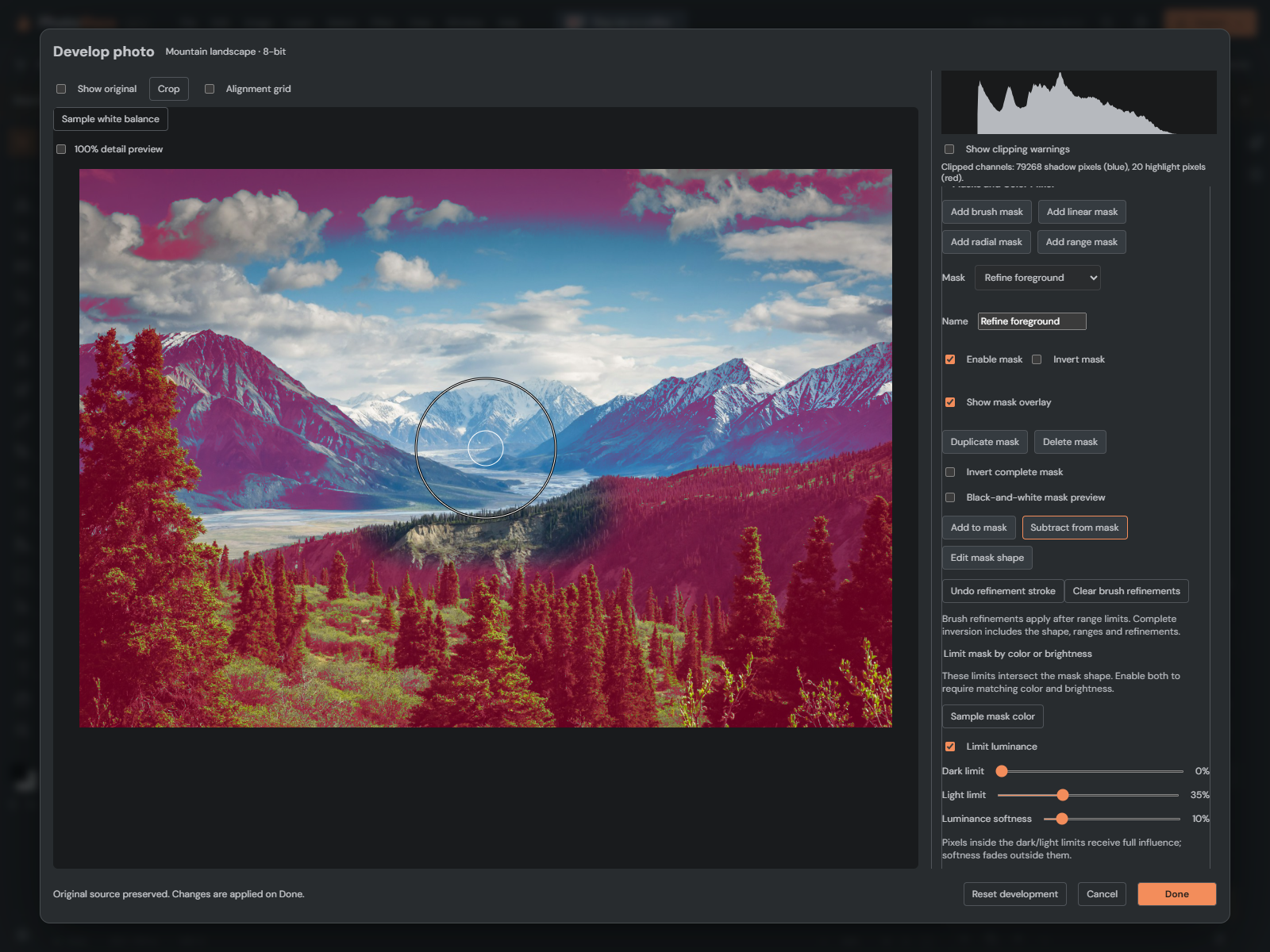
- Brush size: the diameter as a percentage of the shorter photo edge. The outer cursor ring shows the brush footprint.
- Brush feather: edge softness. Use a soft edge to blend corrections; use a harder edge for distinct boundaries. The inner ring shows the solid center.
- Brush flow: how much each brush stamp adds or removes. Lower flow builds up gradually with repeated passes.
Use a smaller brush near edges and a larger one for broad areas. Escape during a stroke discards it. Undo refinement stroke removes the last finished refinement. Clear brush refinements removes all refinements while keeping the original shape, range limits and correction.
Understand what the mask includes
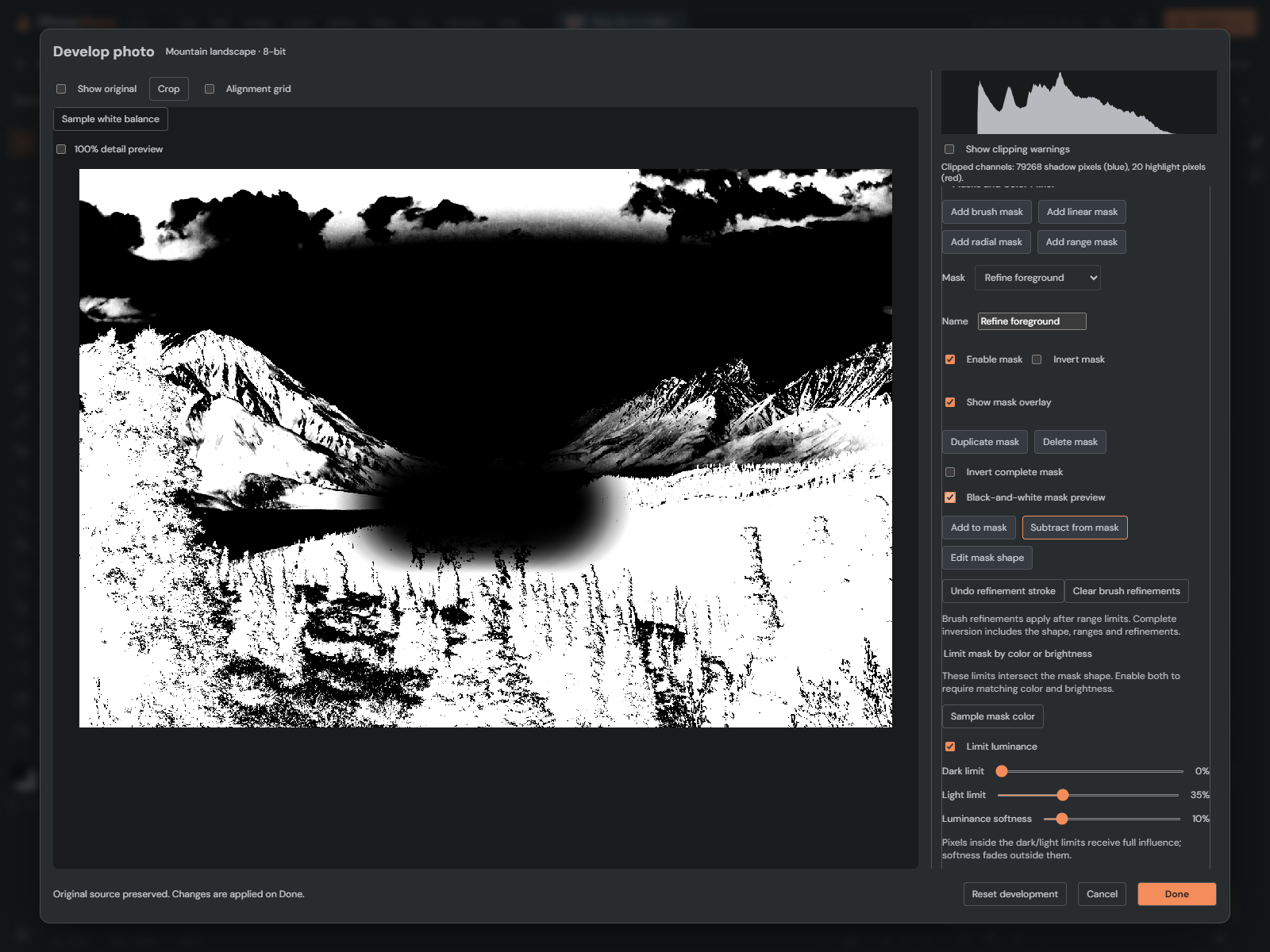
Enable Black-and-white mask preview to see coverage without distraction from the photograph. Disable it to return to the photo. Show mask overlay displays coverage in pink over the image.
Refinements are applied after color and luminance limits. This means Add can deliberately include an exception outside the chosen range. Subtract removes coverage from the combined mask. These preview modes never appear in exported artwork.
Invert the complete result or edit the original shape
Invert complete mask swaps included and excluded areas after the shape, range limits and brush refinements have been combined. Use it when you want the correction everywhere except the area you selected. Add and Subtract still increase and decrease the visible coverage when this option is on.
The older Invert mask control reverses only the original shape. It keeps the behavior of existing saved projects. Use Invert complete mask when you want to reverse everything, including range limits and brush refinements.
Choose Edit mask shape to return to moving gradient handles or editing the original brush mask. Refinements remain in place. This makes it possible to reposition the base mask without throwing away your cleanup work.
Apply, undo and save
Done or Apply filter keeps the session as one document undo step. Cancel discards all session changes. Reset local adjustments clears correction values but keeps the mask. Each mask supports up to 128 refinement strokes, separate from its original brush strokes.
Save an editable PSD to keep the masks for later PhotoBlaze editing. Browser recovery also retains them. Both 8-bit and 16-bit photos preserve the original source and editable settings. Photoshop displays the developed result but cannot edit these as native Adobe Camera Raw masks.
If nothing changes, check that the mask is enabled and has a nonzero correction. If an unwanted area remains, raise brush flow, reduce feather near its edge, or make another Subtract pass. See color and luminance range masks for help choosing the initial range, or start with automatic Subject, Sky and Background masks.