 Photo
PhotoPhoto editing tools
Blur part of a photo
Soften distracting detail with the Blur brush while keeping control of where it acts. Open an ordinary photo and begin brushing without a separate rasterization step.
Open PhotoBlazeLocal image processing · Desktop browser recommended
How to blur part of a photo
- Open the photograph, select its layer and duplicate it if you want a separate comparison copy.
- Choose Blur from the Blur/Sharpen/Smudge tool group on the left toolbar.
- Set size, hardness and strength in the options bar. Use the cursor outline to judge the brush footprint.
- Brush over the area to soften. Use a selection when you need to restrict the effect, and Undo to reverse an unwanted stroke.
- Inspect at 100% zoom, then export a copy. Keep a PSD if you want to preserve your layer arrangement.
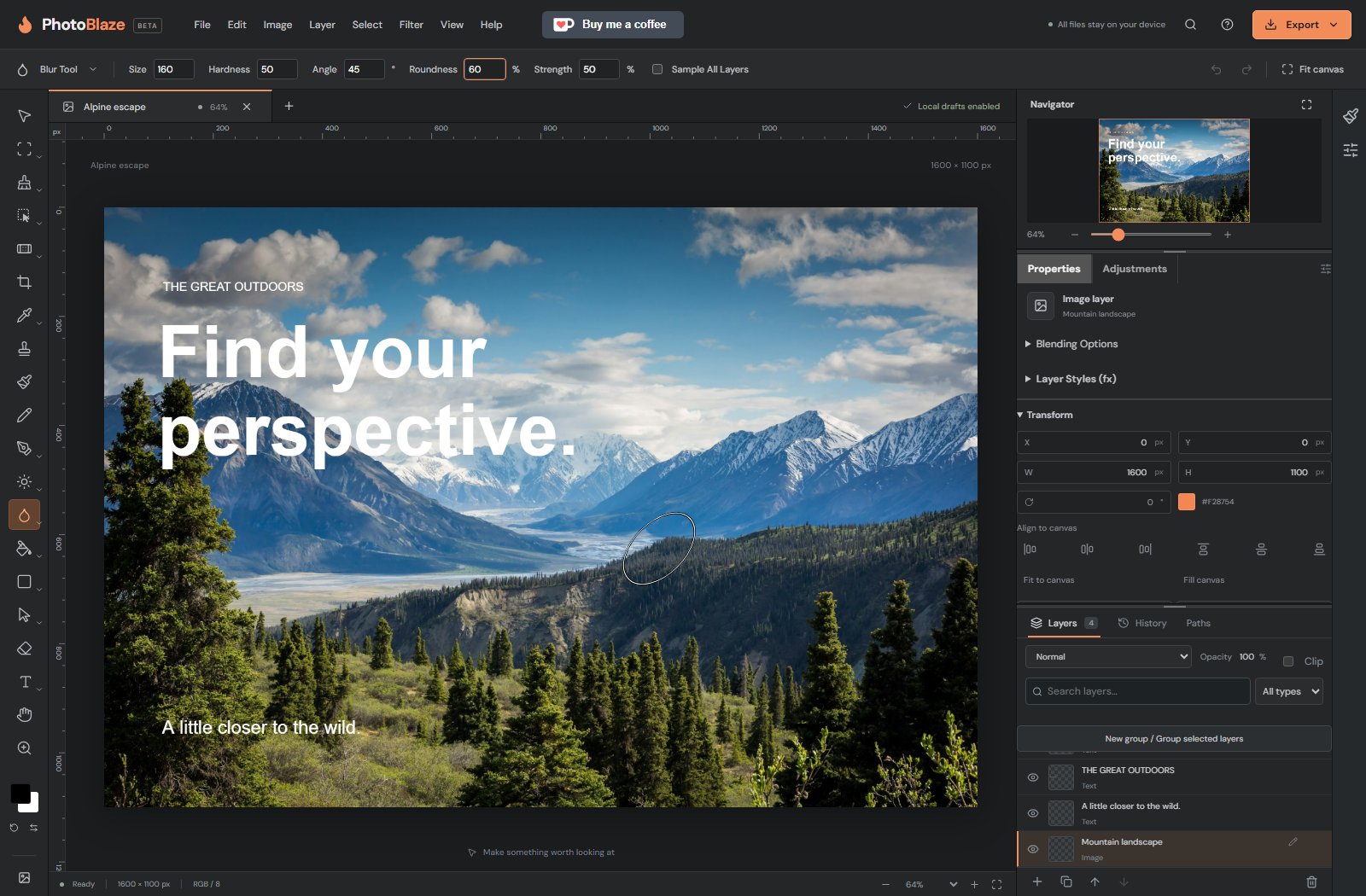
Build softness gradually
A soft brush edge helps blend the edited area into the photograph. Lower strength gives more gradual changes; additional strokes build the effect. Angle and roundness let you use an oval brush around narrow features. The bracket keys change brush size without returning to the options bar.
Blurring reduces visible detail but is not a dependable way to redact confidential information. For sensitive text or identifying details, remove the information or cover it completely and inspect the flattened export. Keep the original file separate from a version intended for sharing.
Does the brush outline show exactly which pixels will change?
It shows the base footprint. Hardness, strength and an active selection determine the effect inside that area. Zoom changes the outline’s screen size, not the saved brush size.
Local processing, with clear limits
Your opened artwork is processed on your device, not uploaded to a PhotoBlaze editing server. The site still downloads its application and optional tools, and uses analytics. Read the privacy details. Keep original files and download a saved copy; browser recovery is not a permanent backup.