 Photo
PhotoPhoto editing tools
Crop an image
Trim unwanted edges and improve the framing of a photograph. Crop in the browser, then keep editing with layers, text and adjustments if your project needs them.
Open PhotoBlazeLocal image processing · Desktop browser recommended
How to crop an image
- Choose File → Open in the editor and select the photograph.
- Select the Crop tool. Drag the crop boundary to frame the area you want to keep.
- Review the subject and all four edges, then confirm the crop using the crop controls.
- Export a JPEG for a typical photograph, or PNG if you need transparency. Save a PSD separately for continued editing.
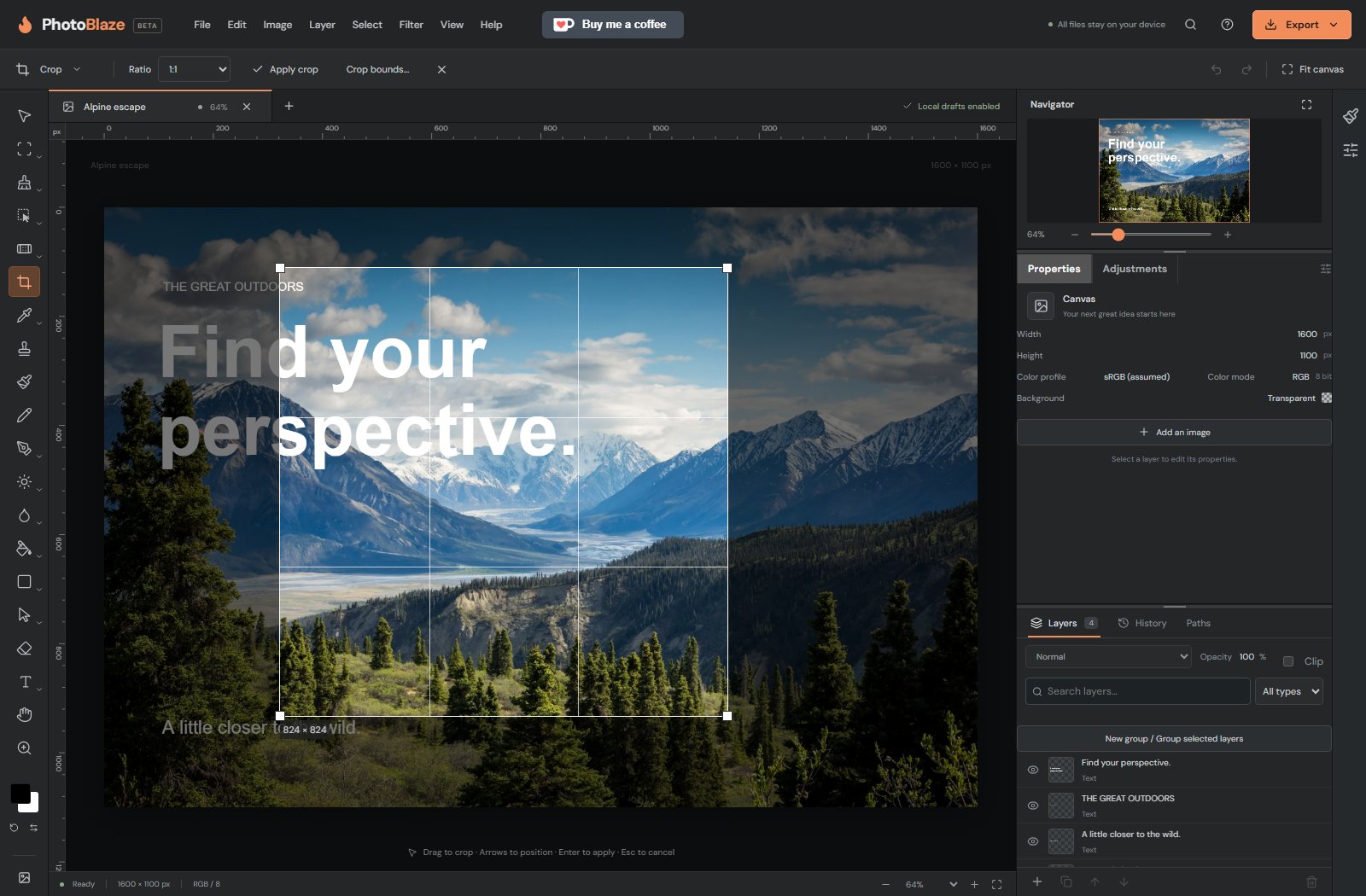
Frame the subject without stretching it
Cropping changes the visible bounds of the picture. It is useful for removing a distracting edge, bringing a subject closer, or preparing a composition for a particular layout. Leave enough room around faces, hands and text so they are not cut off at the destination.
Crop and resize solve different problems: crop chooses what stays in view, while Image size controls output pixel dimensions. A crop affects the document composition, so check any text and other layers too. Keep a source copy, and use Undo if the new framing removes something important.
Will zooming out make the exported photo smaller?
No. Zoom changes only your view. Use Crop to change framing or Image size to change pixel dimensions before export.
Local processing, with clear limits
Your opened artwork is processed on your device, not uploaded to a PhotoBlaze editing server. The site still downloads its application and optional tools, and uses analytics. Read the privacy details. Keep original files and download a saved copy; browser recovery is not a permanent backup.