 Photo
PhotoPhoto editing tools
Resize an image
Make a photograph fit a website, email or presentation by changing its pixel dimensions. PhotoBlaze processes your artwork on your device in a full photo editor.
Open PhotoBlazeLocal image processing · Desktop browser recommended
How to resize an image
- Open the editor, then choose File → Open and select your image.
- Choose Image → Image size. Enter the required width or height and keep proportions linked to avoid stretching the picture.
- Check the resulting dimensions and apply the resize. Inspect fine detail at 100% zoom.
- Choose File → Export image and select JPEG, PNG or another supported format. Open the download to confirm its dimensions.
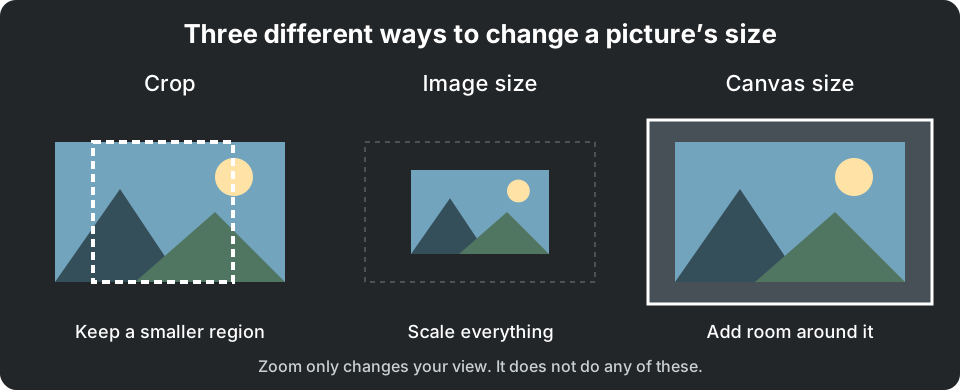
Choose dimensions before file size
For an image displayed at 1200 pixels wide, exporting a 6000-pixel original is often unnecessary. Reducing the width from 6000 to 1200 while preserving proportions produces a smaller pixel grid. The downloaded byte size also depends on the format and quality settings.
Image size scales the composition. Canvas size changes the space around it, while zoom only changes the view. If the destination needs a different shape, crop first and resize afterward. Enlarging a small photo cannot recreate missing detail; keep the original for future versions.
Does resizing preserve editable layers?
Save a PSD for supported editable layers. JPEG and PNG exports flatten the visible composition. Keep the original PSD before resizing an important project.
Local processing, with clear limits
Your opened artwork is processed on your device, not uploaded to a PhotoBlaze editing server. The site still downloads its application and optional tools, and uses analytics. Read the privacy details. Keep original files and download a saved copy; browser recovery is not a permanent backup.