 Photo
PhotoPhoto editing tools
Adjust brightness and contrast
Improve the overall lightness and tonal separation of a photo with an editable adjustment layer. The settings remain available while you work on the composition.
Open PhotoBlazeLocal image processing · Desktop browser recommended
How to adjust brightness and contrast
- Open the photo and select its layer in Layers.
- Open Adjustments and choose Brightness / Contrast. An adjustment layer appears above the selected photo.
- Change the values gradually in Properties. Watch bright areas, dark detail and skin tones as you adjust.
- Toggle the adjustment layer’s visibility to compare before and after. Check which layers sit below it and are affected.
- Save a PSD to keep the adjustment editable, then export a JPEG or PNG for sharing.
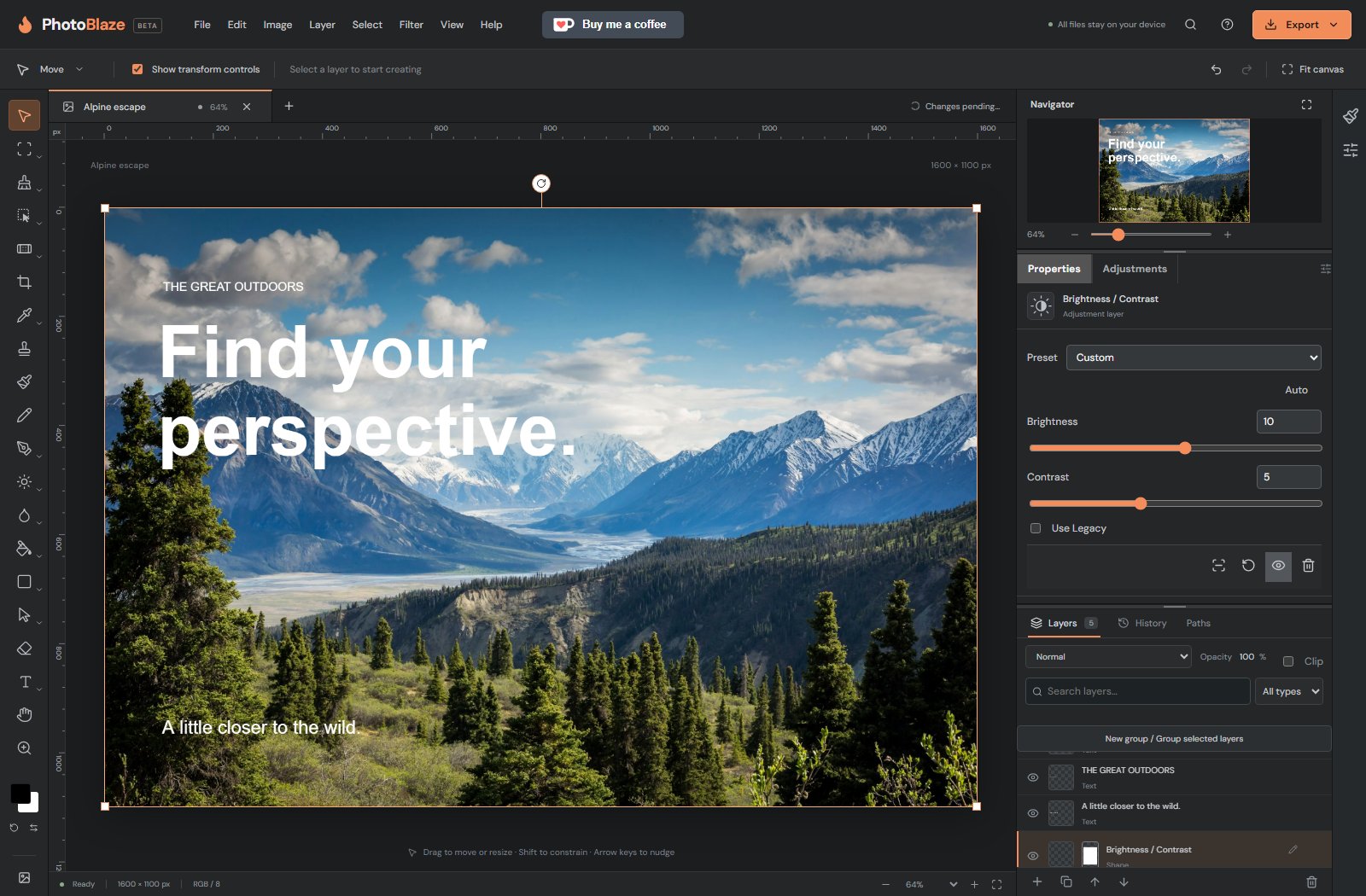
Preserve useful highlight and shadow detail
More brightness is not always better. If a sky turns featureless or a face loses texture, back off the adjustment. Increased contrast can make a photo look stronger while also hiding shadow detail. Inspect both the whole composition and important areas at 100% zoom.
An adjustment layer can be revisited or hidden without repainting the original photo. In a layered design, its position matters: artwork below it may also be affected. For local lightening and darkening, use Dodge and Burn; for more precise tonal control, explore the adjustment tools described in the manual.
Can brightness recover detail that was never captured?
No. A completely clipped highlight or shadow may have no recoverable information. Keep original camera files and use suitable high-depth sources for substantial tonal work.
Local processing, with clear limits
Your opened artwork is processed on your device, not uploaded to a PhotoBlaze editing server. The site still downloads its application and optional tools, and uses analytics. Read the privacy details. Keep original files and download a saved copy; browser recovery is not a permanent backup.