 Photo
PhotoStart with an editable correction
Levels sets shadows, midtones and highlights. Curves shapes several tonal ranges separately. Both work as adjustment layers, leaving your original photo pixels unchanged.
- Open a photo and select its image layer in Layers.
- Open Adjustments and choose Levels or Curves. A new adjustment layer appears above the image.
- Choose RGB to change all components together, or Red, Green or Blue to correct one component.
- Keep the adjustment layer selected to see its controls in Properties. Use its eye icon to compare with the original.
The correction affects layers below it. Use the clipping control to restrict it to the layer directly below; reduce layer opacity for a gentler result.
Read the histogram and clipping preview
Dark values are on the left, midtones in the center, and highlights on the right. Tall bars mean many sampled pixels have that value. RGB combines the three component distributions; a named channel shows just that component.
Choose Before adjustment or After adjustment to compare distributions. Show clipping preview displays a small diagnostic image: blue marks zero, red maximum, and magenta pixels with both. RGB warns when any component reaches an endpoint.
Output endpoint percentages include values that were already at an endpoint. Black backgrounds and reflections may be intentional. The diagnostic is a reduced 8-bit display sample through this adjustment layer, including its mask and opacity. It can miss fine detail and is not a full-resolution clipping measurement. It never reduces your 16-bit document precision.
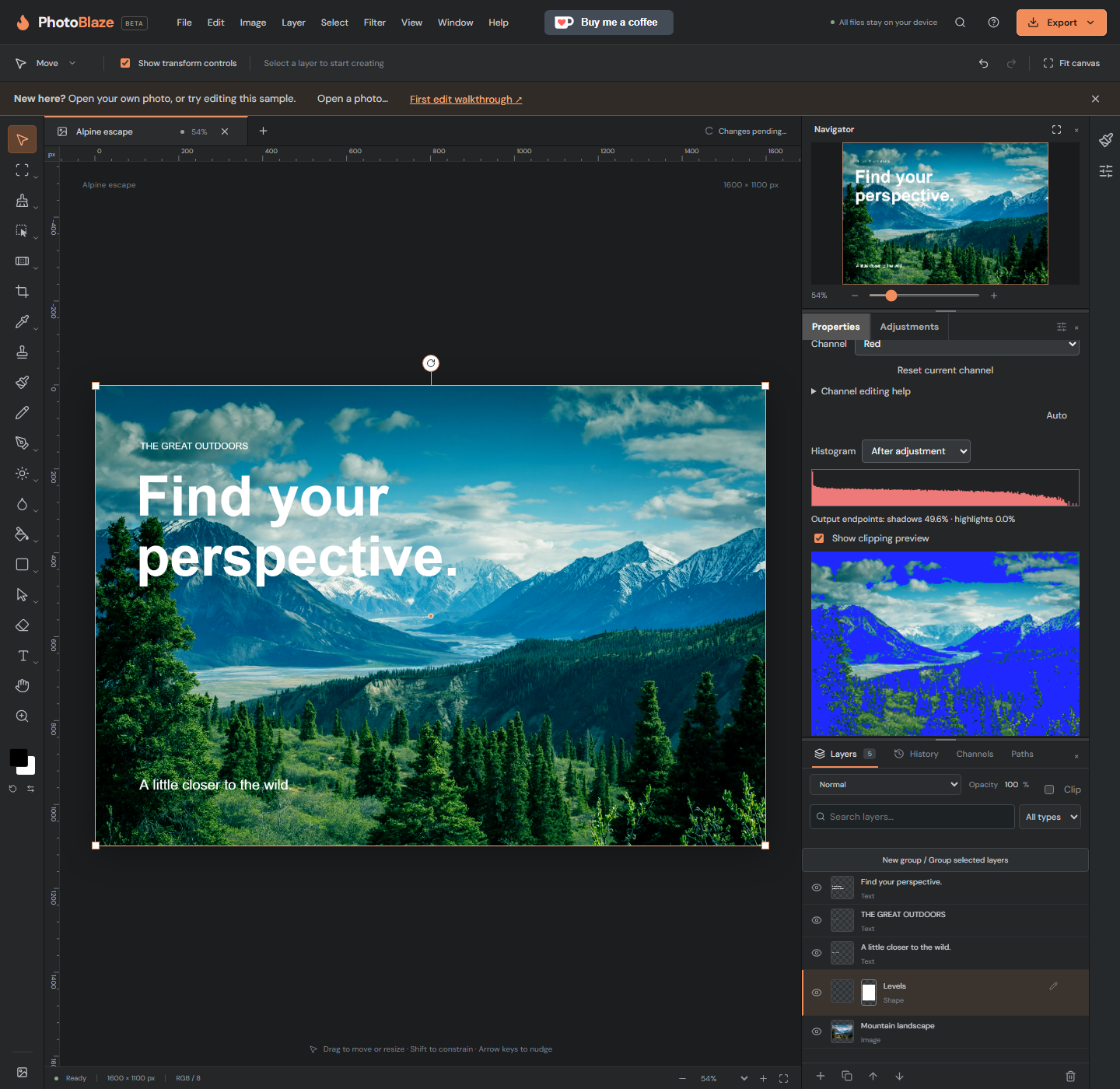
Levels: improve a flat photo
- Select RGB in the Levels Channel menu.
- Increase Input black slowly to deepen shadows. Too much removes shadow detail.
- Lower Input white to brighten highlights. Watch the clipping preview and preserve important texture.
- Increase Gamma above 1 to brighten midtones, or lower it below 1 to darken them.
- Leave Output black at 0 and Output white at 255 for a normal tonal range. Raising Output black fades shadows; lowering Output white softens whites.
Try Input black 10 and Input white 245 as a starting experiment, then compare the result. These are not universal settings. The familiar 0-255 control scale also applies in 16-bit documents; intermediate precision is preserved.
Correct a red color cast
- Add a Levels adjustment and select Red.
- Lower Red Gamma slightly, for example from 1 to 0.95, to reduce red in midtones.
- Compare a neutral object such as a gray wall. If it becomes cyan, reduce the correction.
- Switch to Green or Blue if needed; each channel retains its settings.
- Reset current channel starts over on only that channel. Reset adjustment clears the entire correction.
Reducing Red moves toward cyan, reducing Green toward magenta, and reducing Blue toward yellow. Raising a component moves toward that component color. Make small changes and watch skin tones.
Curves: shape contrast and color
- Add Curves and select RGB. The bottom-left end represents shadows and the top-right highlights.
- Click the diagonal to add a point. Drag upward to brighten that range, downward to darken it.
- For a mild S curve, try a shadow point at Input 64 / Output 56 and a highlight point at Input 192 / Output 200.
- To reduce a red midtone cast, select Red and try a point at Input 128 / Output 120.
- Use Curve input and Curve output for precise values. Escape cancels a drag; Undo restores the previous committed edit.
The histogram and clipping preview update during a drag. Auto changes individual channel endpoints and may alter color balance; it preserves an existing RGB curve. Inspect the result before continuing.
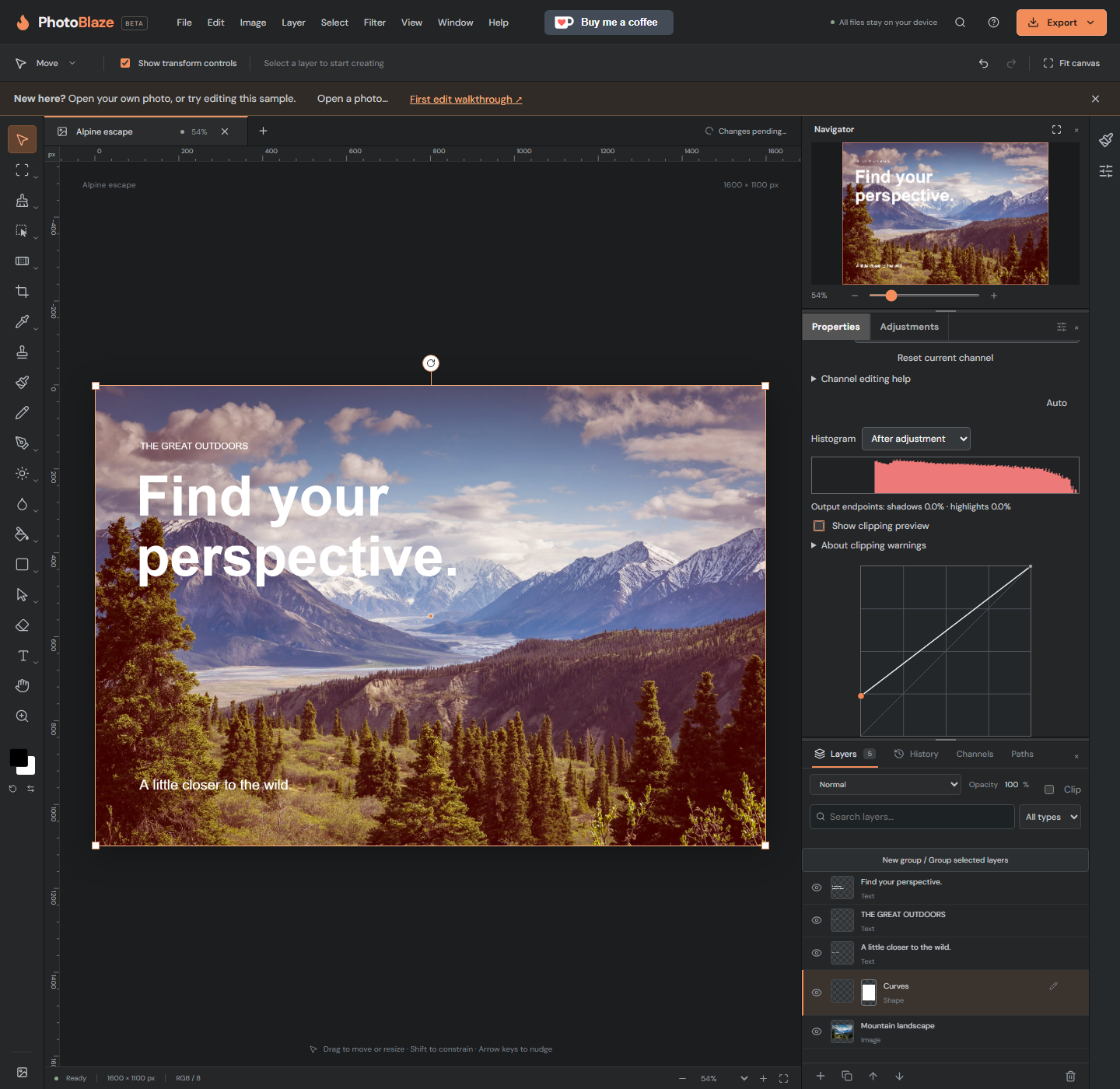
Limit the correction and save
- Select the adjustment layer mask in Layers.
- Paint with a soft black Brush to hide the correction; white reveals it and gray gives a partial effect.
- Select the adjustment layer to revise its controls at any time.
- Use File > Save to download a PSD with editable layers and masks. Export PNG or JPEG for a flattened finished image.
Reopen your saved file and select the adjustment layer to continue. Clipping diagnostics are viewing aids and are not exported.
Set tonal references by clicking the photo
- Select a Levels or Curves adjustment layer, or add one from Adjustments.
- In Properties choose Set black point, Set gray point, or Set white point.
- Click a reference area inside the photo. Sampling averages 3 by 3 pixels below this adjustment.
- The eyedropper applies once. Undo reverses the correction.
Black maps sampled components toward zero; white maps them toward maximum. Choose something that should be black or white, not an arbitrary colorful object. Shiny reflections are usually poor white references. Gray maps all three components to neutral 128: choose a neutral midtone such as a gray wall, not sky or foliage.
Eyedroppers change Red, Green and Blue together regardless of the channel menu, preserving the existing RGB correction. Masks, opacity and layers above can prevent the displayed pixel from reaching the target. Clipped gray samples are rejected. Sampling supports RGB documents up to 32 megapixels and retains native 16-bit input precision.
Brighten a tone by dragging on the image
- Select Curves and choose RGB, Red, Green or Blue in Channel.
- Choose Adjust tone on image.
- Press over the tonal area and drag upward to brighten, downward to darken.
- Release for one undo step. Escape cancels the drag; Done ends on-image mode.
For a dim face, start with RGB and gently drag upward over a midtone on the face. This affects that tonal range throughout the photo, not only under the pointer. Use the mask to restrict it to the face. A named channel changes just that component. Changing channels ends on-image mode.
Nearby curve points are reused. A full 16-point curve needs a point removed before another can be added. Original image pixels remain unchanged.
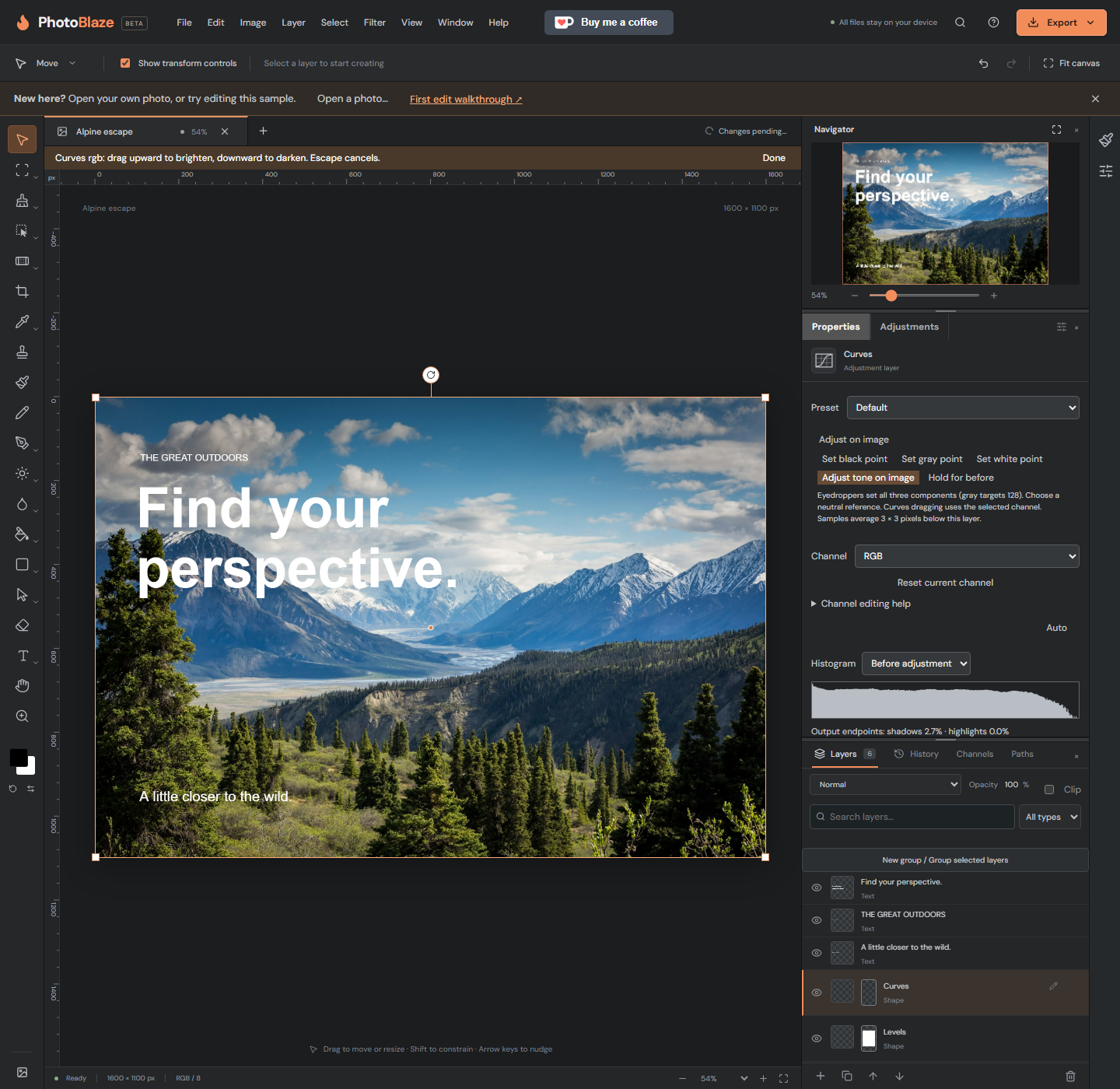
Compare before and after
Hold the Hold for before button to temporarily hide the selected adjustment. Release to restore it. Keyboard users can focus the button and hold Space or Enter. Comparison changes neither saved visibility nor history.
Other adjustment layers remain visible. Escape, window blur or changing tools or layers ends temporary comparison or an active on-image drag.