 Photo
PhotoPhoto editing tools
Remove a background
Separate a subject from its background using selection tools and a layer mask. PhotoBlaze gives you an editable cutout workflow, with edge refinement before you export.
Open PhotoBlazeLocal image processing · Desktop browser recommended
How to remove a background
- Open the photograph and select its photo layer in Layers.
- Select the subject with the available subject, object or manual selection tools. Automatic tools can need a model download on first use.
- Create a layer mask from the selection. Hide any original background layer underneath so you can see transparency.
- Refine the mask with Brush: black hides, white reveals. Inspect hair and narrow gaps at a useful zoom.
- Choose PNG in Export image to keep the transparent background. Save a PSD to retain the editable mask.
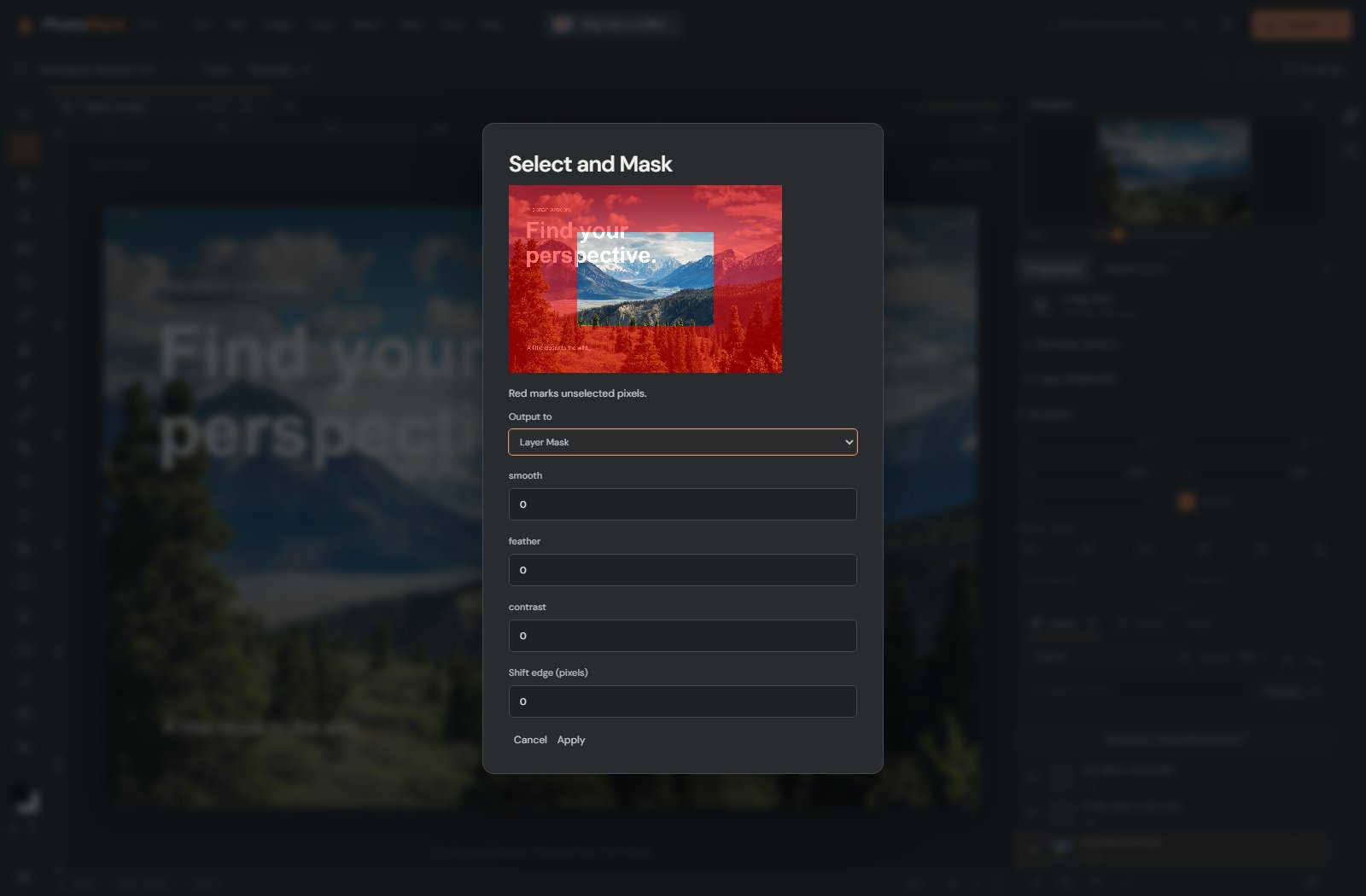
Check the edges before you export
Hair, fur, translucent objects and low-contrast edges are difficult cutouts. Automatic selection provides a starting point, not a guarantee of a finished result. Inspect the mask against contrasting backgrounds and repair unwanted holes or leftover edge color.
A mask hides pixels without erasing the underlying photograph. It lets you restore an area later with a white brush. If the old background still appears, check for a visible duplicate underneath. The full editor is best used in a desktop browser; large photos and selection models require available device memory.
Why does my transparent cutout have a white background after export?
JPEG cannot store transparency. Export PNG and make sure no visible background layer is filling the transparent area.
Local processing, with clear limits
Your opened artwork is processed on your device, not uploaded to a PhotoBlaze editing server. The site still downloads its application and optional tools, and uses analytics. Read the privacy details. Keep original files and download a saved copy; browser recovery is not a permanent backup.