 Photo
PhotoPhoto editing tools
Convert JPG to PNG
Open your JPEG in PhotoBlaze and export a PNG on your device. You can also add text, crop the picture or create a transparent cutout before exporting.
Open PhotoBlazeLocal image processing · Desktop browser recommended
How to convert jpg to png
- Launch the editor and choose File → Open. Select your JPG or JPEG file.
- Review the photo. Make any intended edits, such as cropping or adding text.
- Choose File → Export image and select PNG as the output format.
- Check output dimensions and export. Open the downloaded PNG to verify the result.
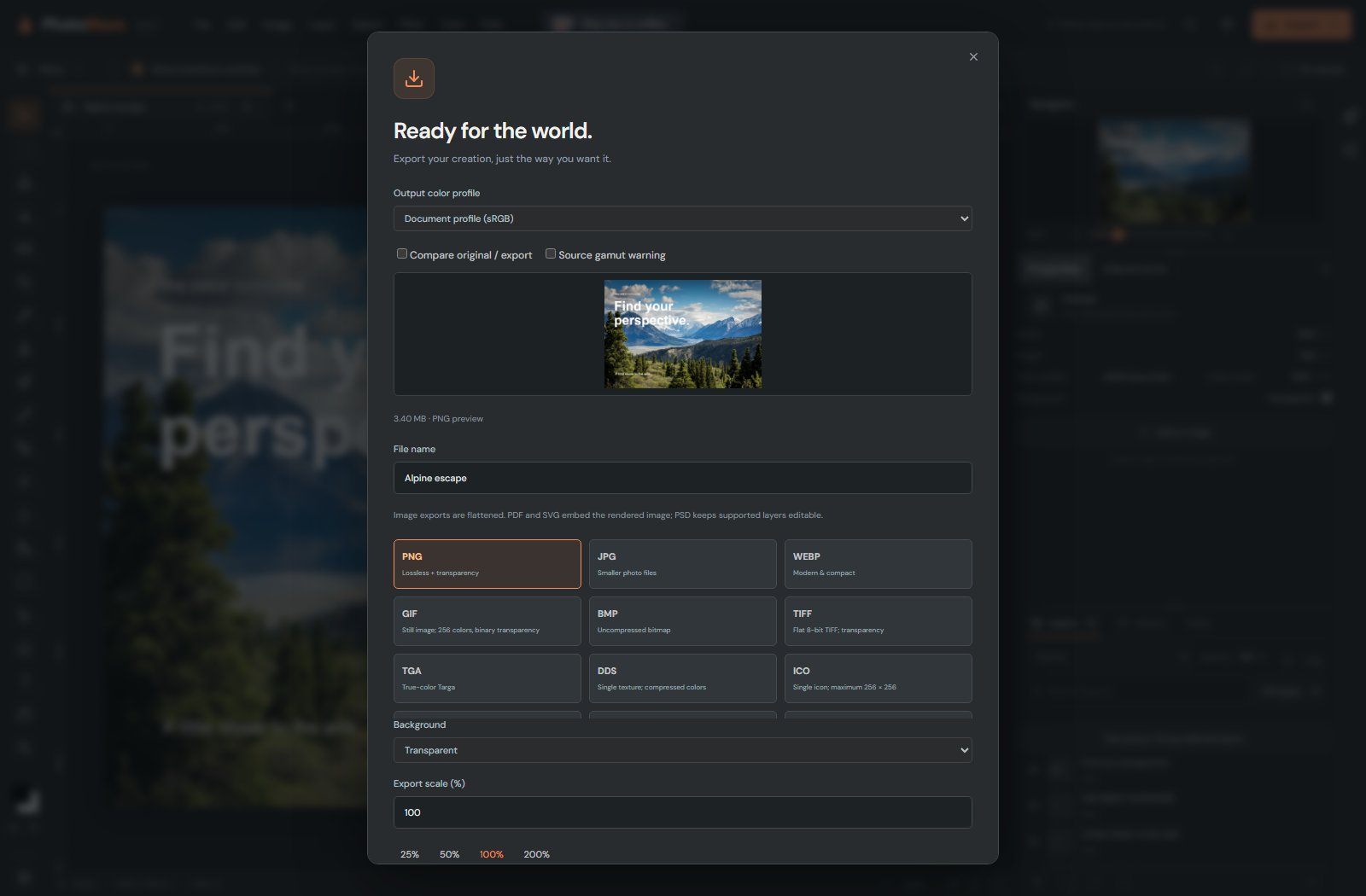
What changes when you convert a JPEG?
PNG can store transparency and uses lossless compression for the pixels being saved. Converting an existing JPEG to PNG does not restore detail already lost to JPEG compression. A photographic PNG can be considerably larger than its JPEG source.
Conversion also does not remove a background. To produce a transparent PNG, first hide the background with a selection and mask. Renaming a .jpg file to .png is not conversion; use the export format control. If you need editable text or masks later, save a PSD as well as the flattened PNG.
Is the exported PNG an editable layered file?
No. PNG export contains the visible composite image. Use File → Save for a PSD that retains supported editable layers.
Local processing, with clear limits
Your opened artwork is processed on your device, not uploaded to a PhotoBlaze editing server. The site still downloads its application and optional tools, and uses analytics. Read the privacy details. Keep original files and download a saved copy; browser recovery is not a permanent backup.